

Documentation Index
Fetch the complete documentation index at: https://docs.krea.ai/llms.txt
Use this file to discover all available pages before exploring further.
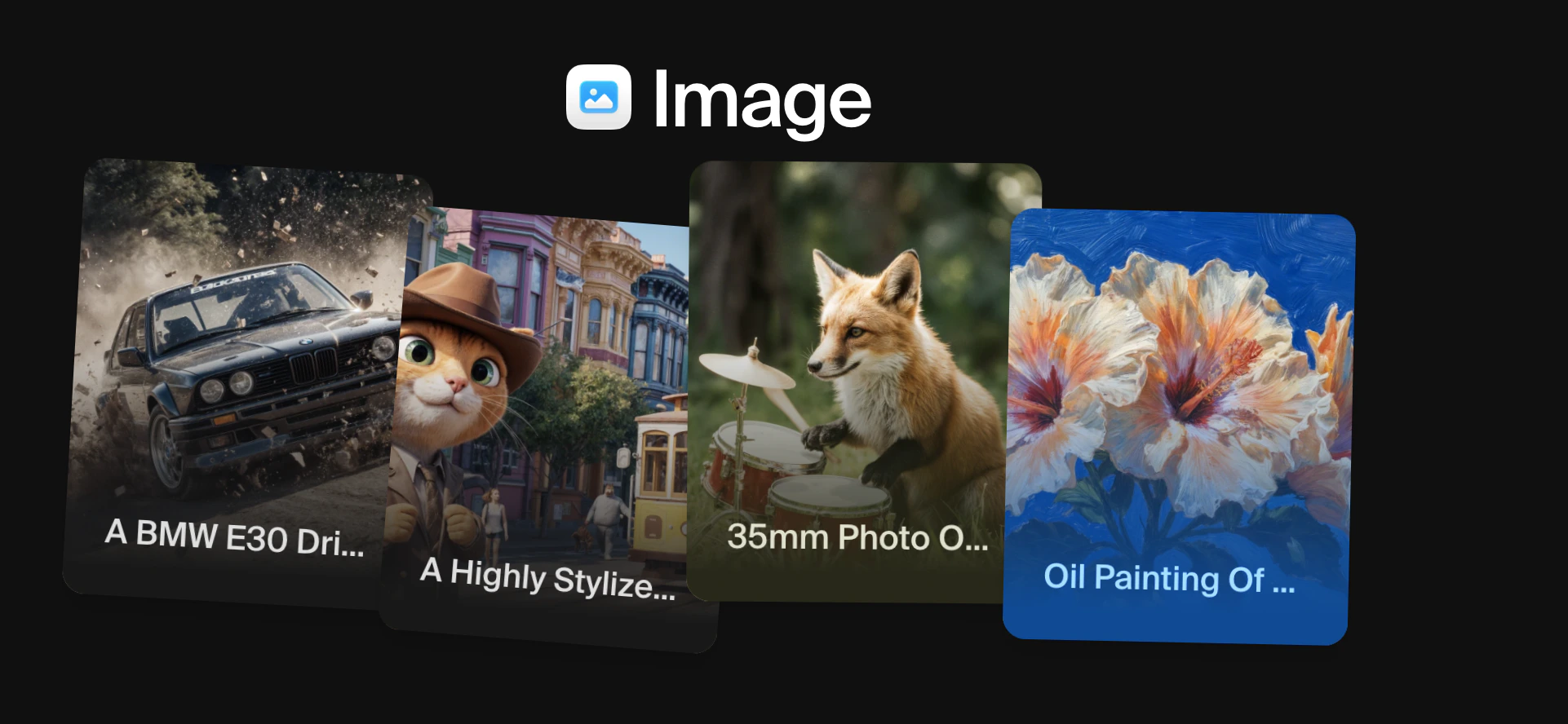
How it works
Open image mode using the image icon in the left navigation bar. You will see a prompt box at the bottom of the screen and a model selector in the bottom-left corner.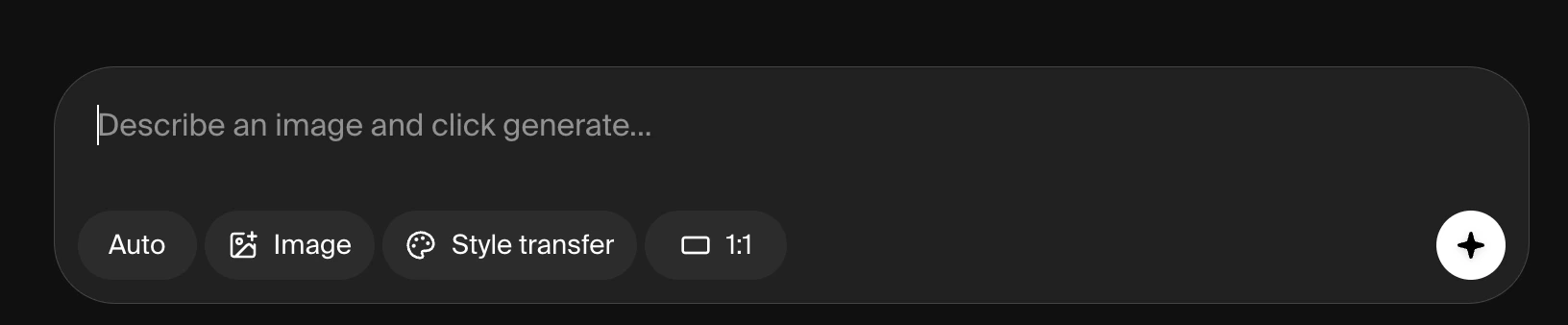
1. Choose a model
Click the model name in the bottom-left to open the model picker. The picker lists all available image models along with a short description of each one, its speed, quality tier, and compute cost.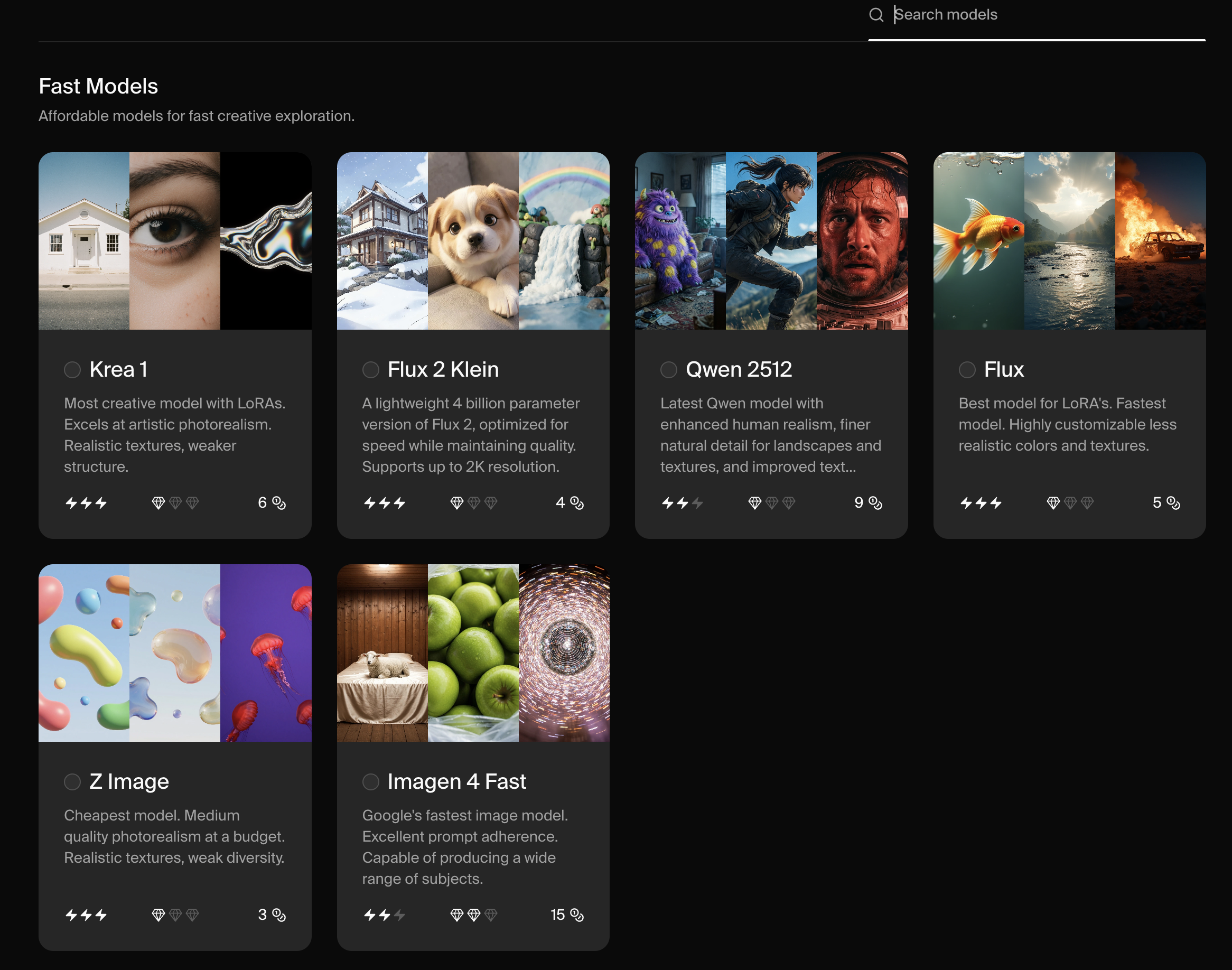
| Images per generation | Compute units per generation | Seconds per generation | Maximum resolution | |
|---|---|---|---|---|
| Krea 1 | 4 | 8 | 6 | 4096 |
| Flux | 4 | 5 | 4 | 1024 |
| Nano Banana | 2 | 114 | 45 | 1024 |
| ChatGPT Image | 2 | 183 | 60 | 1024 |
| Seedream 4 | 2 | 24 | 20 | 4096 |
| Wan 2.5 | 2 | 569 | 180 | 1536 |
| Qwen | 2 | 8 | 15 | 1024 |
| Imagen 4 | 2 | 114 | 60 | 1024 |
| Runway Gen-4 | 2 | 140 | 60 | 1024 |
| Ideogram 3.0 | 2 | 114 | 30 | 1024 |
| Flux.1 Krea | 4 | 16 | 8 | 4096 |
| Flux Kontext | 2 | 14 | 5 | 1024 |
| Flux Kontext Pro | 2 | 114 | 10 | 1024 |
| Flux 1.1 Pro | 2 | 114 | 10 | 1024 |
| Flux 1.1 Pro Ultra | 2 | 171 | 30 | 2048 |
| Imagen 4 Ultra | 2 | 171 | 60 | 1024 |
| Imagen 4 Fast | 2 | 57 | 20 | 1024 |
| Imagen 3 | 2 | 114 | 60 | 1024 |
| Seedream 3 | 2 | 84 | 5 | 1024 |
| Aspect ratio | Image style | Style | Image prompt | Preset | Paint | Raw | Character reference | |
|---|---|---|---|---|---|---|---|---|
| Krea 1 | ✅ | ✅ | ✅ | ✅ | ✅ | |||
| Flux | ✅ | ✅ | ✅ | |||||
| Nano Banana | ✔️* | ✅ | ✅ | ✔️* | ||||
| ChatGPT Image | ✅ | ✔️* | ✅ | ✅ | ✅ | ✅ | ✔️* | |
| Seedream 4 | ✅ | ✔️* | ✅ | ✔️* | ||||
| Wan 2.5 | ✅ | ✅ | ✅ | |||||
| Qwen | ✅ | ✅ | ✅ | |||||
| Imagen 4 | ✅ | |||||||
| Runway Gen-4 | ✅ | |||||||
| Ideogram 3.0 | ✅ | ✅ | ✅ | |||||
| Flux.1 Krea | ✅ | ✅ | ✅ | ✅ | ✅ | |||
| Flux Kontext | ✅ | ✅ | ||||||
| Flux Kontext Pro | ✅ | ✅ | ||||||
| Flux 1.1 Pro | ✅ | |||||||
| Flux 1.1 Pro Ultra | ✅ | |||||||
| Imagen 4 Ultra | ✅ | |||||||
| Imagen 4 Fast | ✅ | |||||||
| Imagen 3 | ✅ | |||||||
| Seedream 3 | ✅ |
"Create an illustration of a skyscraper in the style of the attached image."
2. Write a prompt
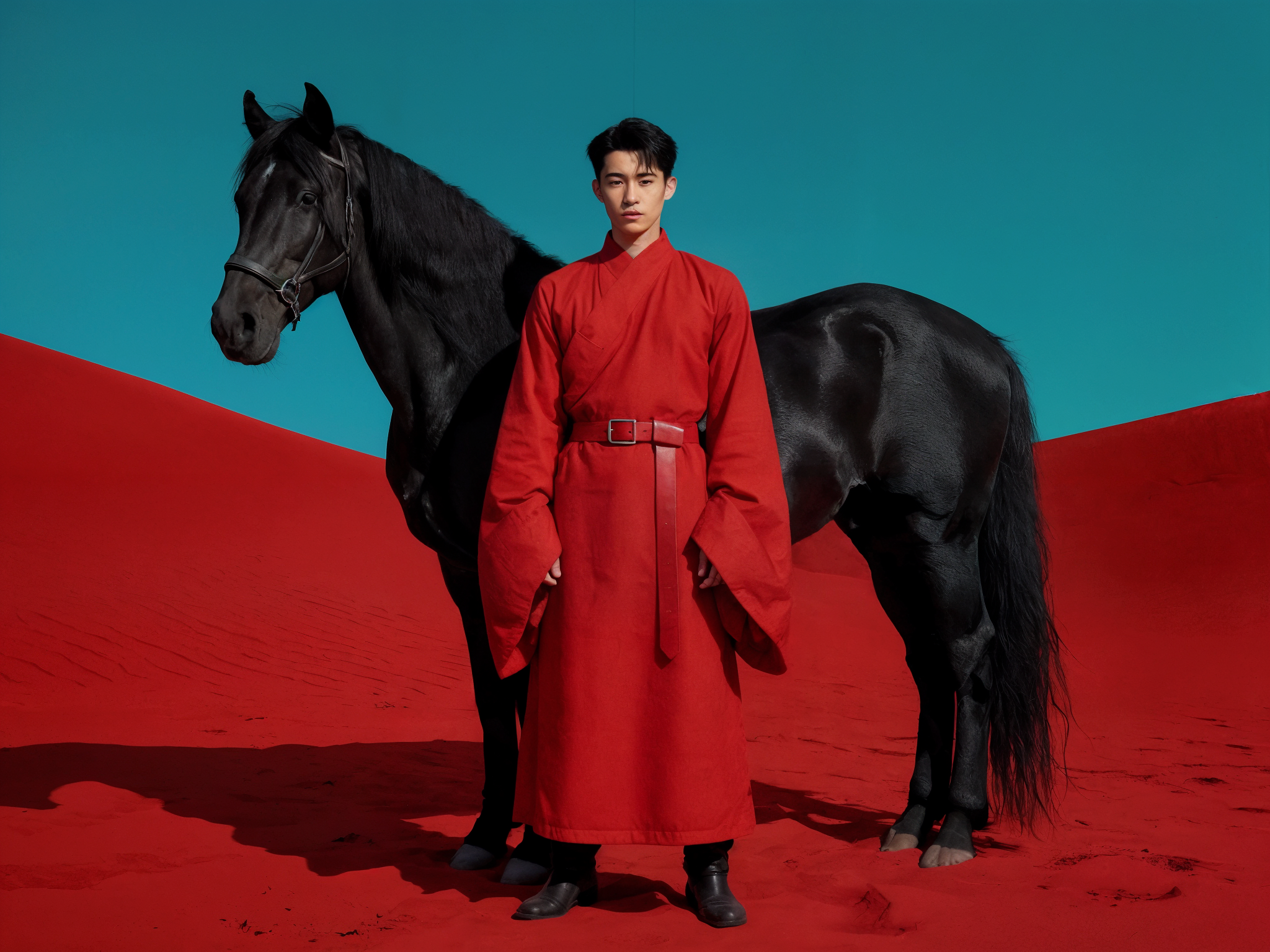
Describe the image you want in the text box. You can be as brief or as detailed as you like. For most models, including subject, setting, lighting, and mood in your description will produce more precise results.A young East Asian man in a long red traditional robe with wide sleeves and a red belt, standing in front of a black horse in a surreal red desert landscape under a flat teal sky. Cinematic lighting, bold and minimal.
3. Adjust settings
Most models offer additional settings below the prompt box. These let you control aspect ratio, apply a style, upload a reference image, and more. Not every setting is available for every model. The full list of settings is explained below.
4. Generate
Click Generate. Depending on the model, generation takes between 4 and 180 seconds. Most generations return either two or four images per prompt.The model picker
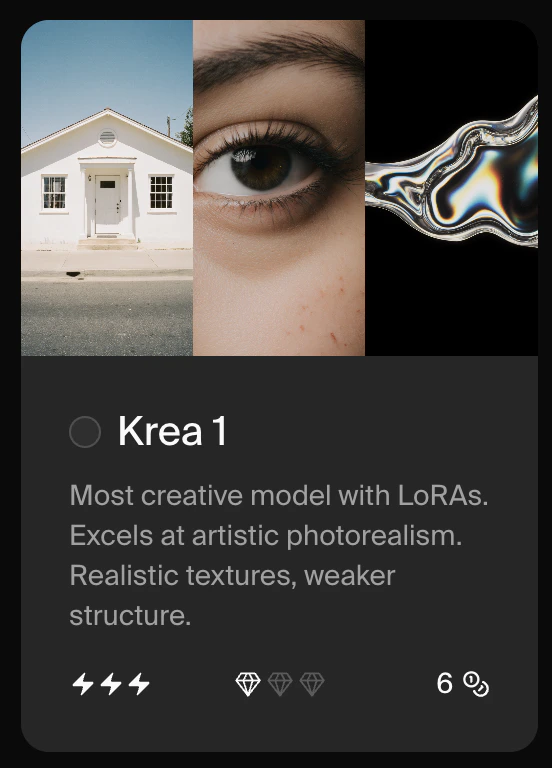
Clicking the model name in the bottom-left opens the model picker panel. Each entry shows:
- The model name and a one-line description of its strengths
- A speed indicator (number of lightning bolts)
- A quality indicator (number of diamond icons)
- The approximate compute cost per generation
Auto mode
The Auto option at the top of the list selects the best model for your prompt and plan automatically. It is a good default if you are not sure which model to use.Available models
The models shown in the picker fall into two groups. Krea models are developed and maintained by Krea:| Model | Description |
|---|---|
| Krea 1 | Most creative model with LoRA support. Generates 4 images per prompt at up to 4096px. |
| Krea 2 | Beta access to Krea’s next generation model. |
| Model | Provider | Description |
|---|---|---|
| Nano Banana Pro | Most intelligent model. Strongest at complex prompt adherence and reasoning. | |
| Nano Banana 2 | Most intelligent model, at a lower compute cost than Nano Banana Pro. | |
| Nano Banana | Versatile intelligent model. | |
| Seedream 5 Lite | ByteDance | Medium-quality model with reasoning and web search capabilities. |
| Recraft V4 | Recraft | Detailed, precise image generation. |
Settings
When a model is selected, the available settings appear beneath the prompt box. Settings vary by model.Aspect ratio
Controls the dimensions of the output image. Most models offer preset ratios (square, portrait, landscape) and some support custom ratios. Use 9:16 for vertical content such as social media stories or TikTok.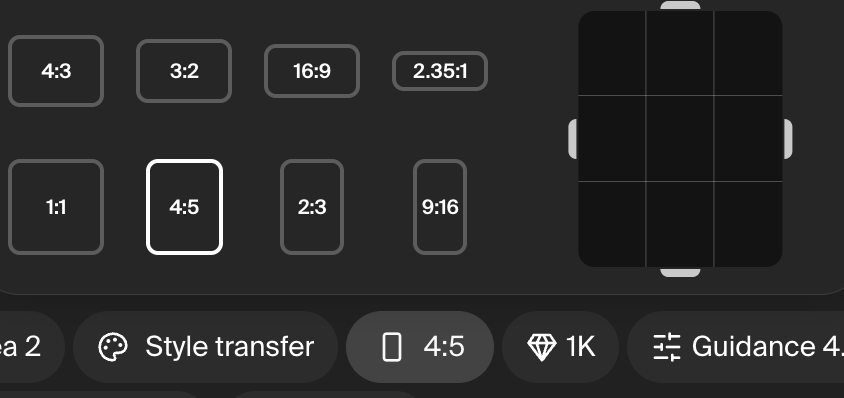
Style transfer
Available for: Krea 1 only. For other models, use the Image prompt setting with a similar instruction in your text prompt. Transfers the visual look of an uploaded image onto your generation. Upload your own image, choose from Krea’s provided starters, or reference a previously generated image. Useful for matching a consistent aesthetic across multiple outputs.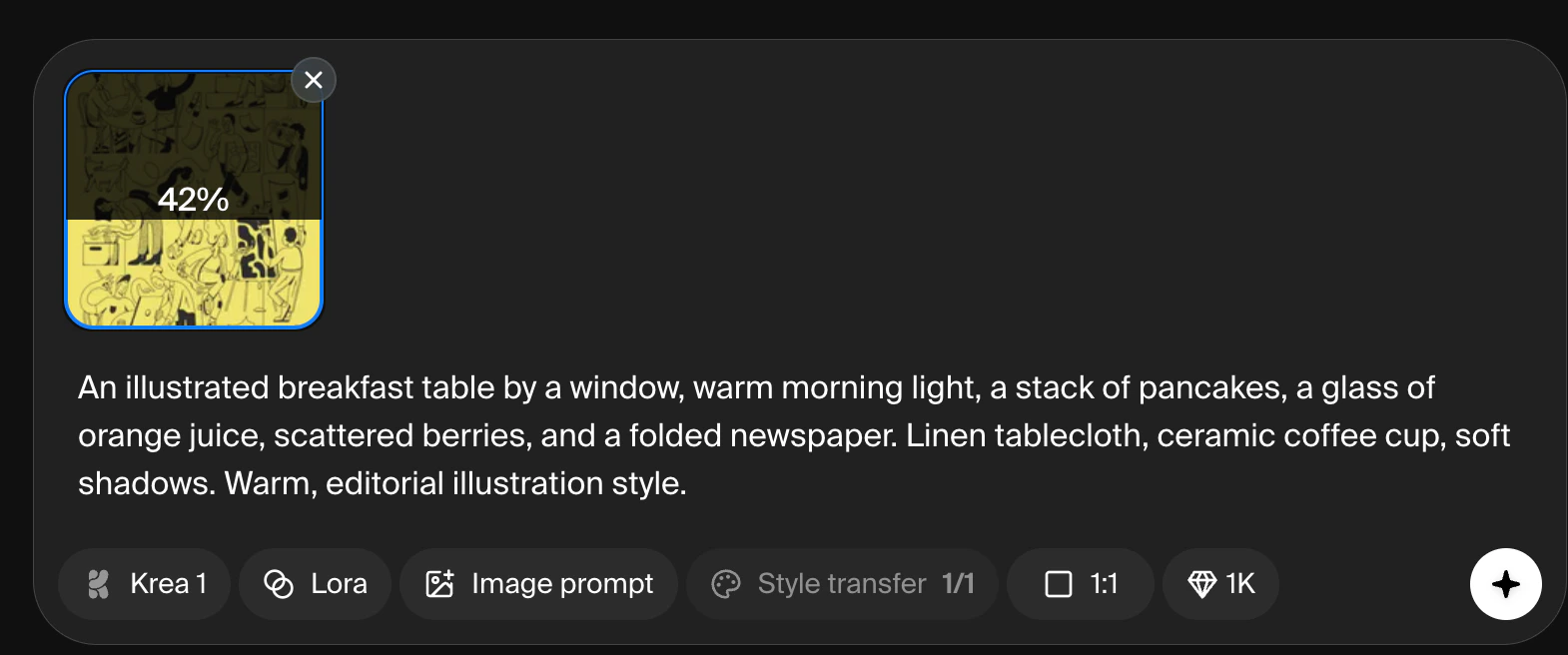
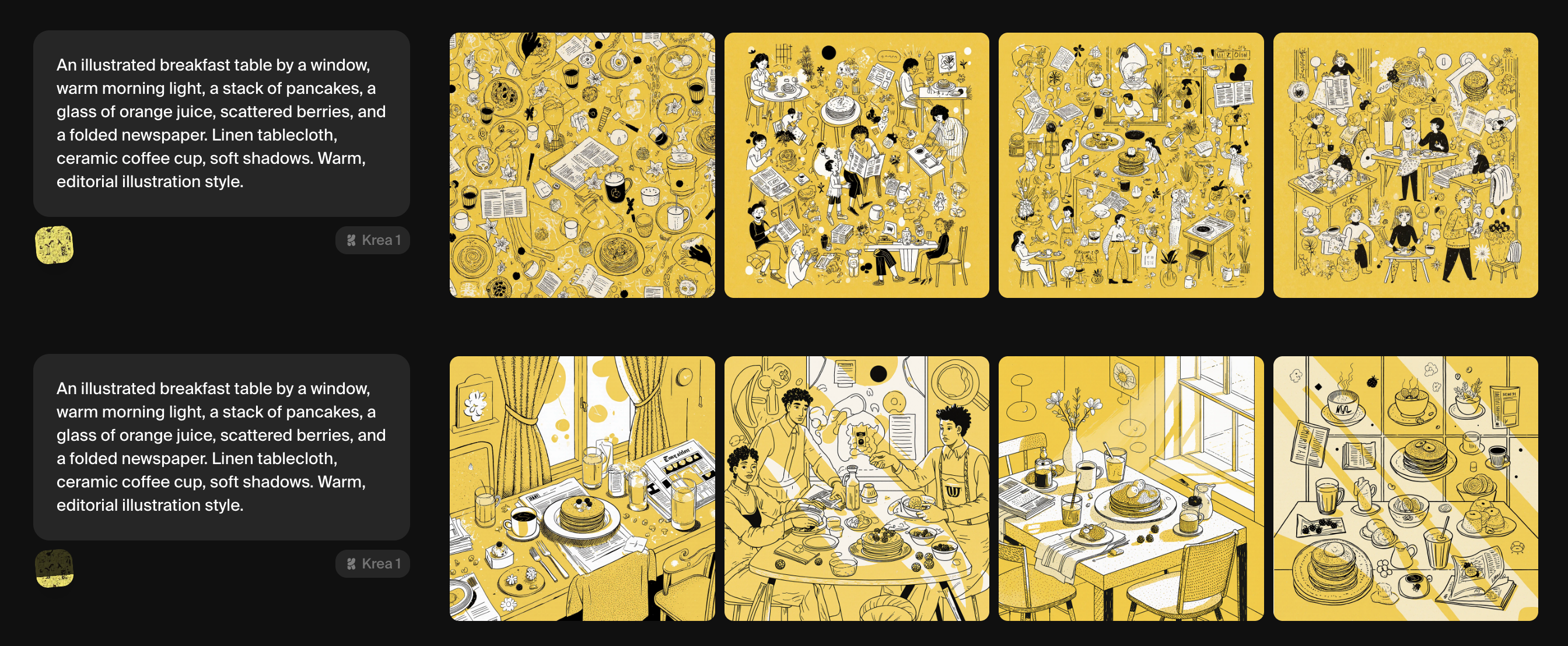
Image prompt
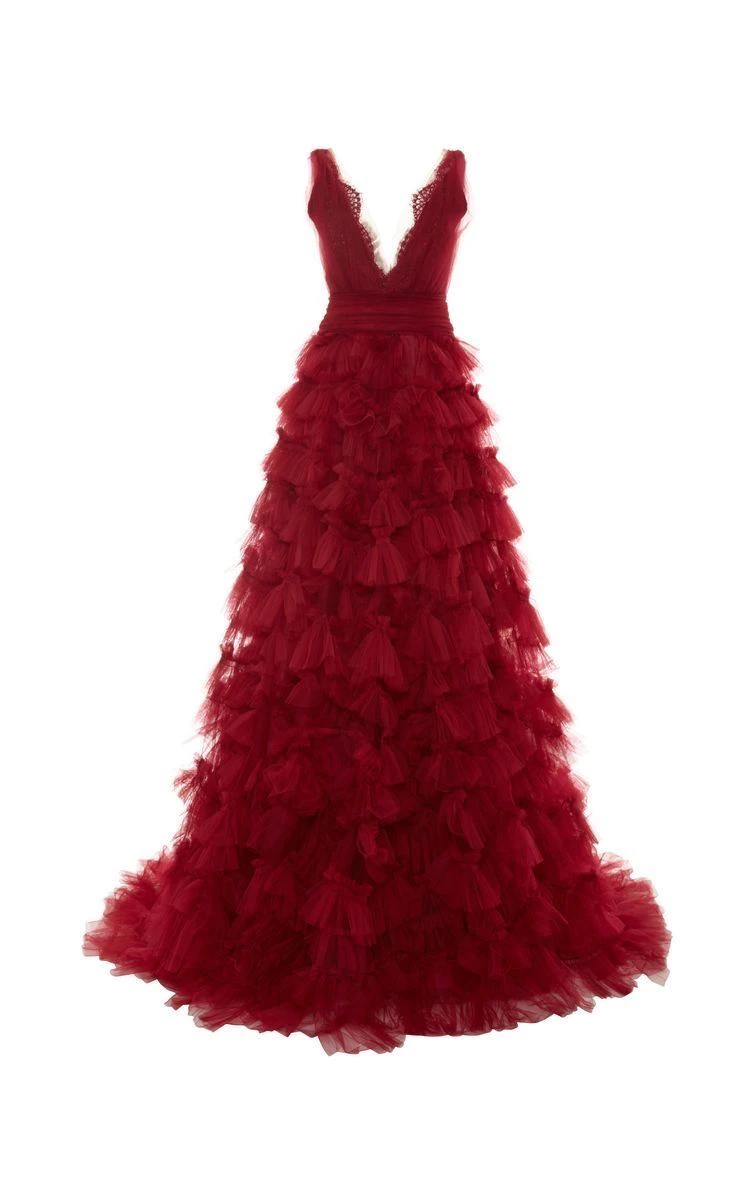
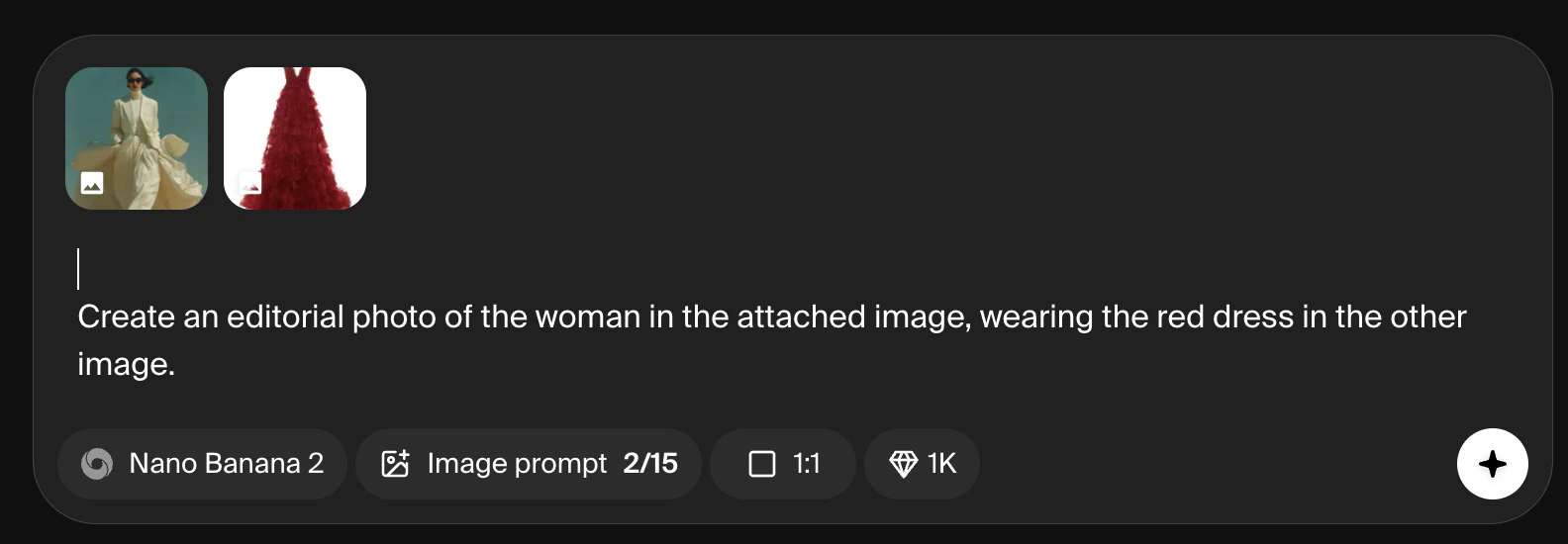
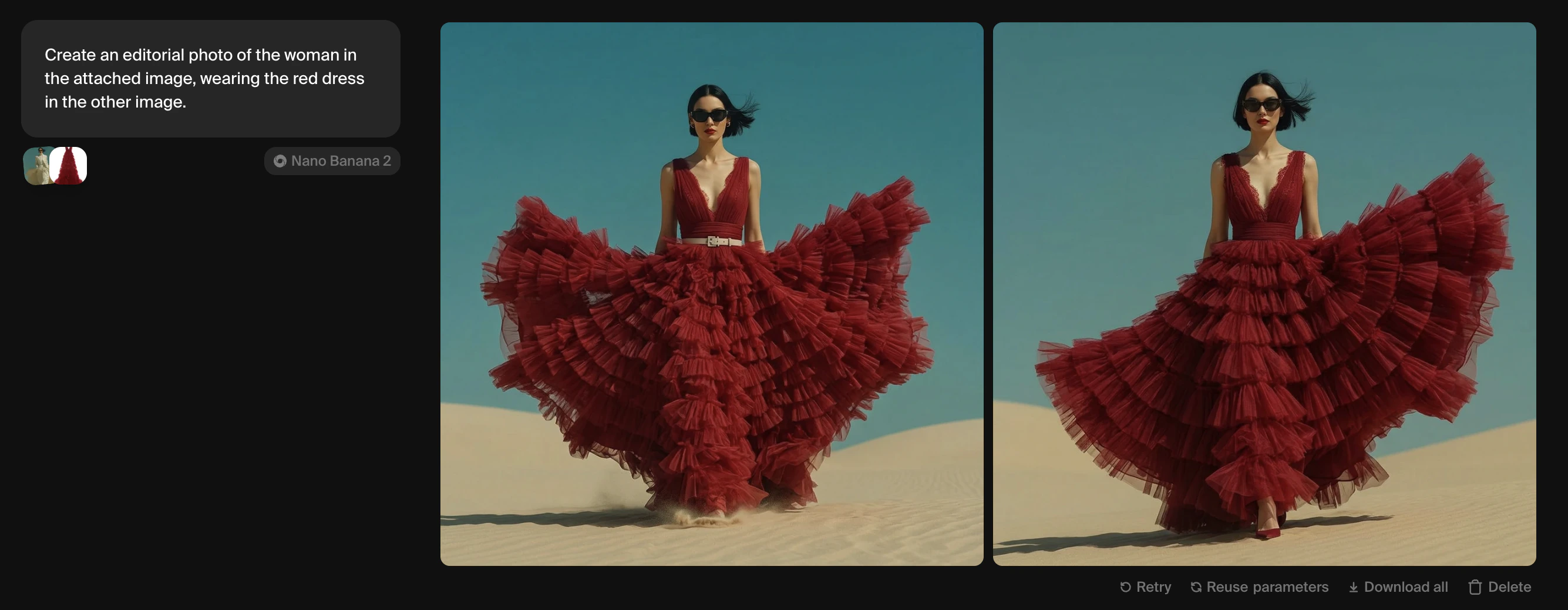
Upload one or more images to influence your generation. In most models, elements of the uploaded image, such as composition, color, and style, are blended with your text prompt. In reasoning models such as Nano Banana, you can reference the uploaded image directly in your prompt (for example, ‘Create an editorial photo of the woman in the attached image, wearing the red dress in the other image’).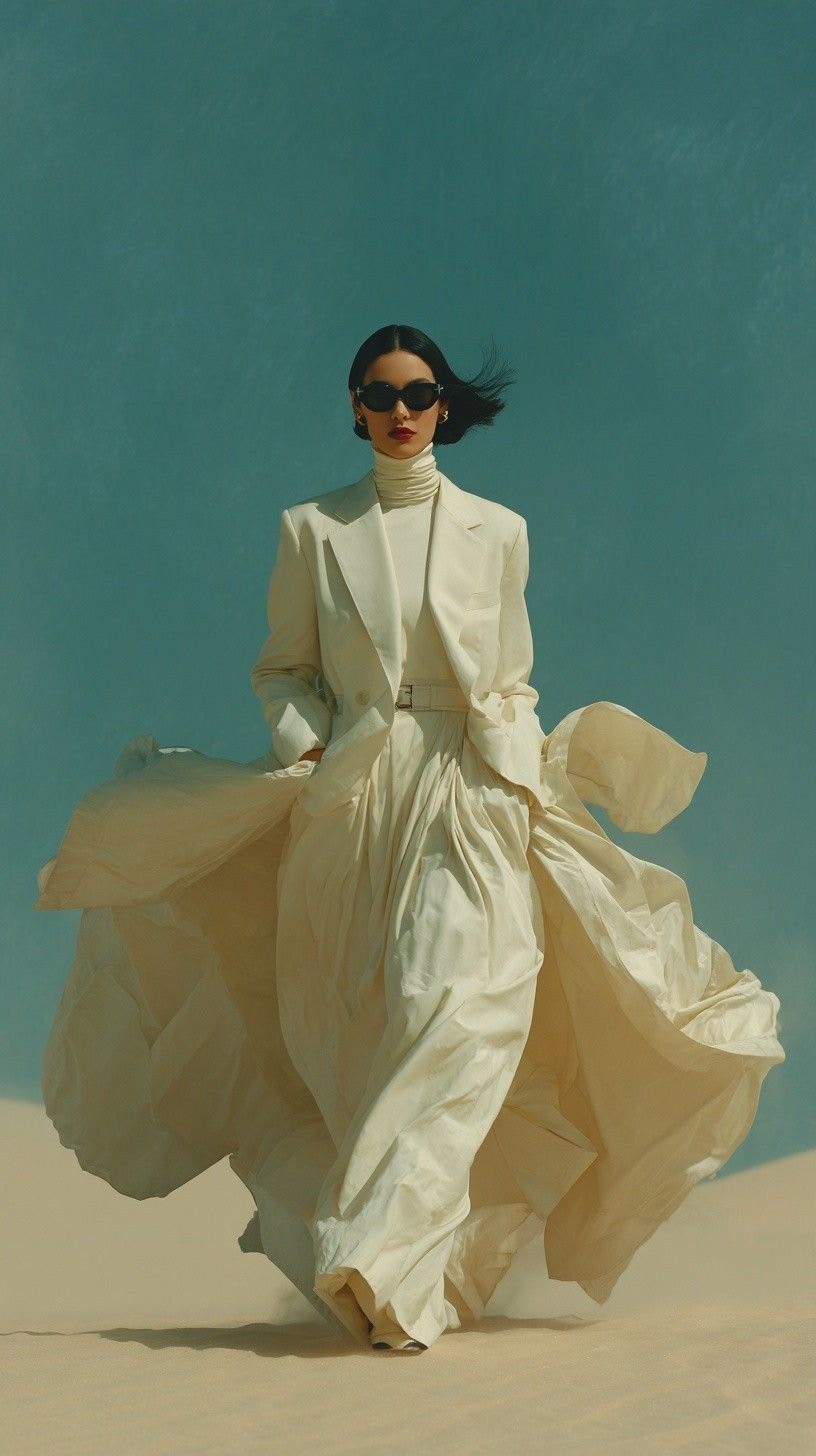
After generating
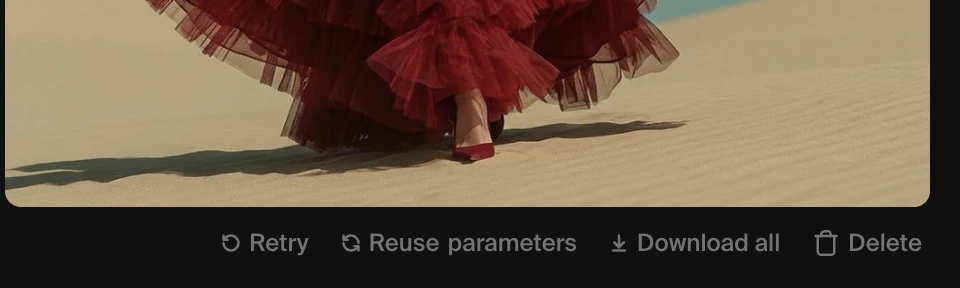
Each prompt produces a row of results. Hover over any row to reveal additional controls. Below the images:- Retry re-runs the same prompt and model immediately.
- Reuse parameters loads the prompt, model, and settings back into the prompt box for editing.
- Share parameters generates a link that others can use to reproduce your generation exactly.
- Download all downloads the full set of images as a .zip file.
- Publish creates a shareable public page for your images.
- Delete removes the images from your session view. Your assets are not deleted.
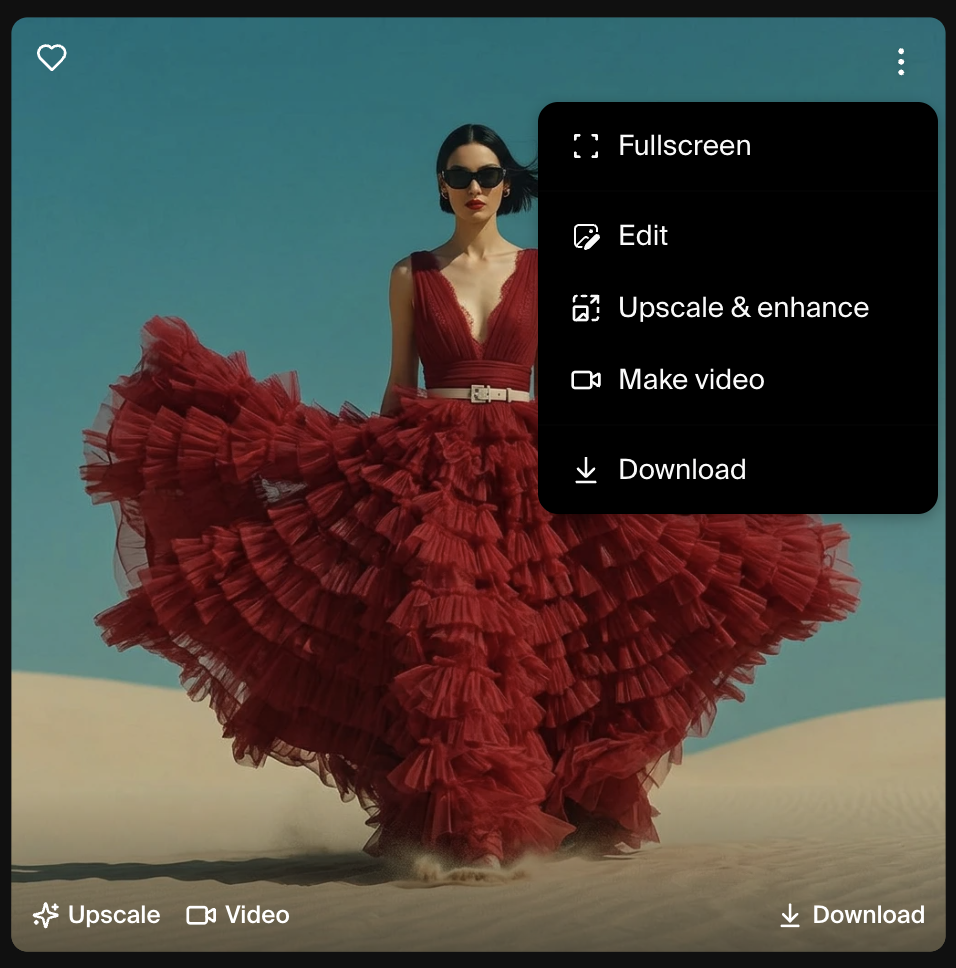
- Fullscreen shows your generated image at fullscreen
- Edit send the image to the Edit tool
- Upscale & enhance sends the image to the Enhance tool
- Video sends the image to the Video tool as a starting frame.
- Download icon saves the image to your device.
- Heart icon marks the image as a favorite for easy retrieval in Assets.
Sessions
Each generation is added to the current session. You can continue adjusting your prompt and generating new rows within the same session to iterate on a direction. Start a new session by clicking the + icon in the left-hand panel to keep different projects organized. To find images from past sessions, click the Assets icon in the top navigation bar to browse all your generated images in a single grid.Choosing a model
A quick reference for common use cases:| Goal | Recommended model |
|---|---|
| Photorealistic images | Krea 1 |
| Fast iteration | Krea 1, Flux 2 Klein |
| Complex prompt adherence | Nano Banana Pro, Nano Banana 2 |
| High-fidelity text in images | Seedream 5 Lite |
| Graphic design and flat illustration | Ideogram |
| Cinematic character compositions | Runway Gen-4 |
| Detailed precision | Recraft V4 |