Overview
Flux is one of the fastest and most customizable models on Krea. It’s built for speed and flexibility, letting you combine text prompts, style references, aspect ratio adjustments, and reference images to produce a wide range of visual outputs.
It works exceptionally well with LoRAs, making it the go-to choice when you’re working with a trained custom style. At 5 credits per image, it’s also one of the most economical options on Krea’s platform, which makes it ideal for drafting, iteration, and concept exploration before committing to a more expensive model for the final output.
Available Models
Flux is available in several versions, each suited to different needs.
| Model | Description |
|---|
| Flux | Fast quality model optimized for Krea. Works best with styles and image references |
| Flux 1.1 Pro | Advanced yet efficient model from Black Forest Labs. |
| Flux 1.1 Pro Ultra | BFL’s highest quality text to image model |
| Flux Kontext Pro | Frontier model designed for image editing, capable of advanced reasoning and style transfer |
At a Glance
| Feature | Detail |
|---|
| Speed | Fastest (3/3) |
| Quality | Selective (1/3) |
| Credits | 5 per image |
| LoRA support | Yes — excellent compatibility |
| Best at | Rapid iteration, LoRA styling, concept exploration |
Getting Started
- Go to Image Generation — Navigate to krea.ai/image and select Flux from the dropdown menu.
- Select your Flux model — Open the model picker and choose the Flux variant that fits your needs. The default Flux model is a good starting point for most tasks.
- Set your aspect ratio — Use the aspect ratio button to choose your format before generating.
- Write your prompt — Use a structured format for best results:
[art style] [subject] [scene] [lighting] [color]. For example: A linocut illustration of a forest clearing, soft natural light, warm earthy tones.
- Add style references (optional) — Upload up to 3 reference images from the right sidebar, or choose from preloaded styles like Cartoon, CGI, Concept, or Photo. Use the style weight slider to control how strongly each reference influences the output.
- Generate — Click Generate. Flux will return up to 4 image variations quickly.
- Iterate — Use the Vary button to create slight modifications of a result, or adjust your prompt and regenerate. When you have a strong output, bring it into the Enhancer or Edit tool for final polish.
Flux has a more graphic, illustrative quality by default compared to models like Krea 1 or Qwen 2512. Colors and textures tend toward the stylized rather than the photorealistic, which is a limitation for some use cases and an advantage for others. If you’re generating concept art, illustrated assets, or anything with a graphic or designed quality, that tendency works in your favor.
Where Flux really shines is in the iteration phase. Because it’s fast and cheap, you can run through a large number of prompt variations in a short amount of time, identify what’s working, and then carry the strongest result into a higher-quality model or the Enhancer for finishing.
When to Use Flux
| Use When | Avoid When |
|---|
| You’re testing many different prompt ideas quickly | You need photorealistic colors and textures |
| You’re applying a LoRA style and want fast feedback | Your final output needs to be production-ready without further refinement |
| You want the most economical option for drafting | You’re not using a LoRA and want strong stylistic output |
| You’re exploring concepts before committing to a higher-quality model | You need fine anatomical or textural accuracy |
Customizing Your Output
Flux gives you several tools for refining and directing the generation beyond the text prompt alone.
| Tool | How to Use It |
|---|
| Reference images | Upload up to 3 images to guide the visual output. Each has its own strength slider |
| Style weight slider | Lower values keep the output closer to your text prompt. Higher values prioritize the reference |
| Preloaded styles | Choose from Cartoon, CGI, Concept, Photo, and Flux Realtime to set a broad aesthetic direction |
| Style mixing | Combine multiple preloaded styles, such as Cartoon and CGI, to explore hybrid aesthetics |
| Vary button | Generate slight modifications of an existing result to progre |
Examples
Illustration and Graphic Styles
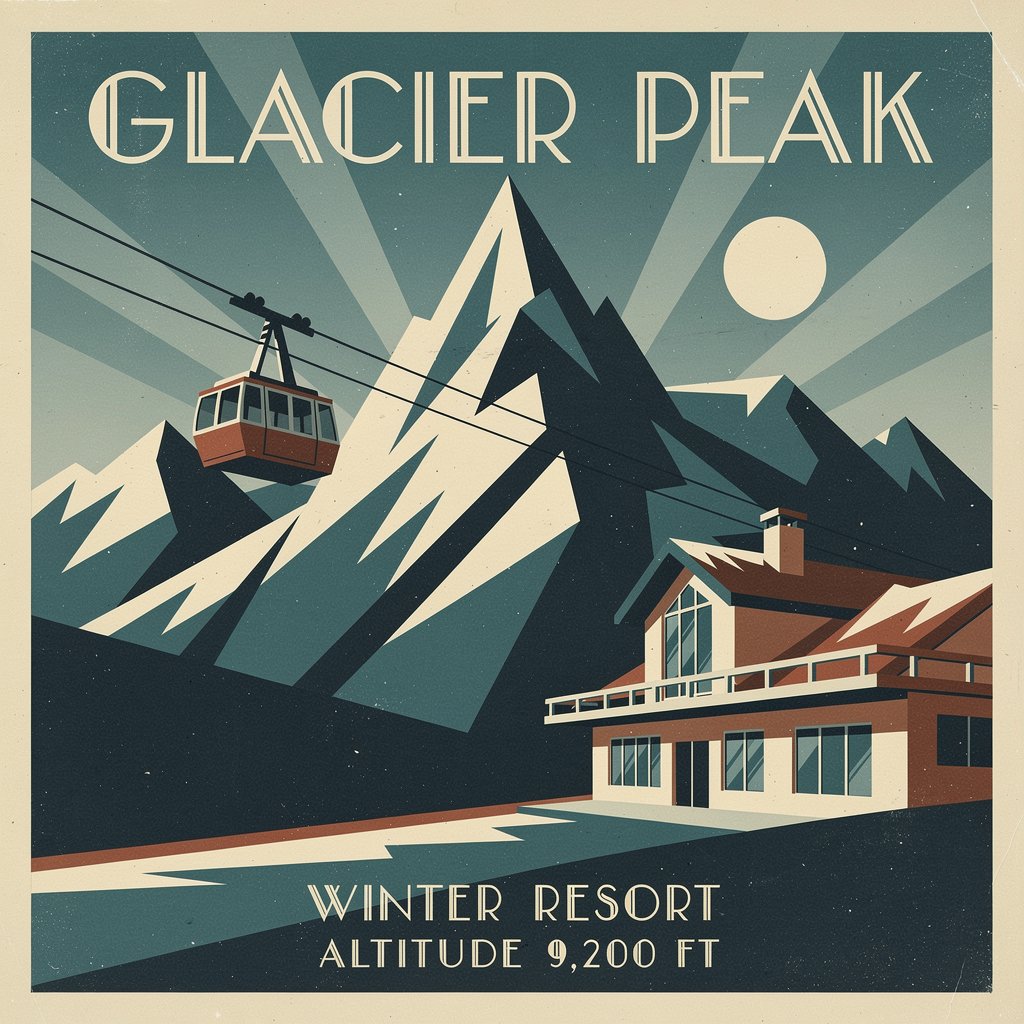
Flux has a naturally graphic, illustrative aesthetic by default. Colors tend toward the bold and stylized rather than photorealistic, which works in its favor for concept art, illustrated assets, poster design, and anything with a designed quality.
A vintage travel poster for a fictional mountain resort called "Glacier Peak," bold geometric shapes, limited color palette of deep teal, cream, and rust, art deco typography, clean flat illustration style, print quality
Character / Creature Design
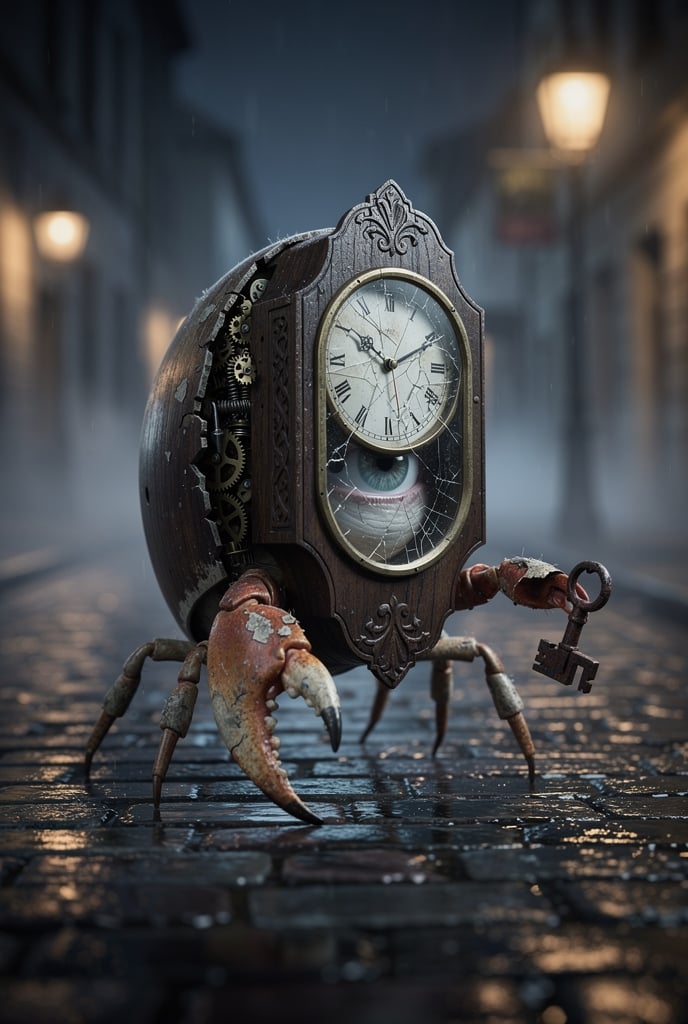
Flux handles imaginative subjects cleanly, including robots, monsters, fantastical characters, and stylized figures. The graphic quality of its output suits concept work where realism is less important than visual clarity and impact.
Small creature that is part hermit crab, part grandfather clock, its shell replaced by a ticking wooden clock housing with a cracked glass face showing the wrong time, tiny brass gears spilling from a seam in its side, mismatched legs of different lengths, one claw replaced by a rusted key, a single large watery eye peering out from the clock face. Wandering across a rain-wet cobblestone street at night, warm lamplight catching the brass fittings, creature concept art style, detailed surface textures, melancholic and slightly absurd mood.
Style Transfer & Reference
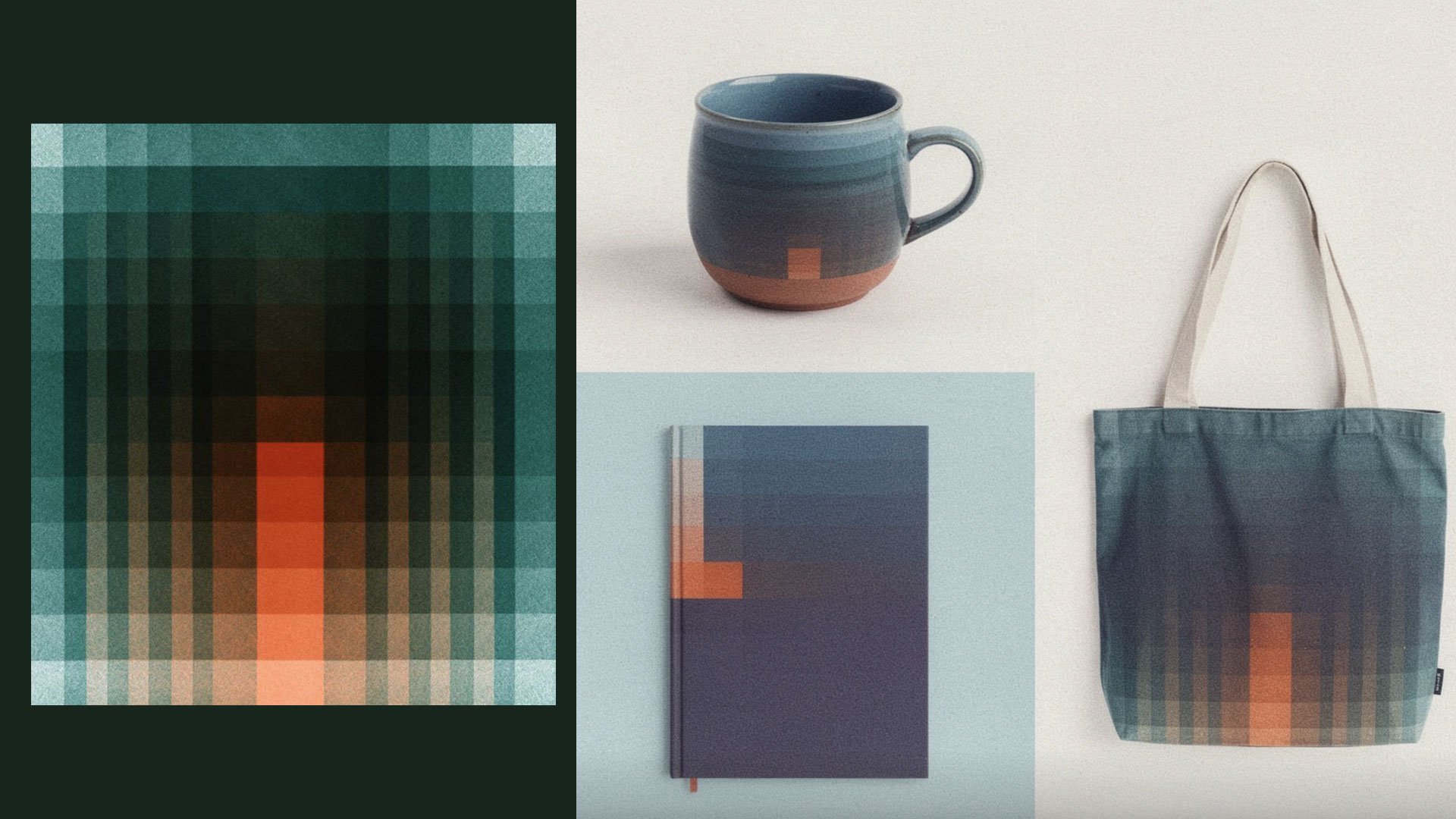
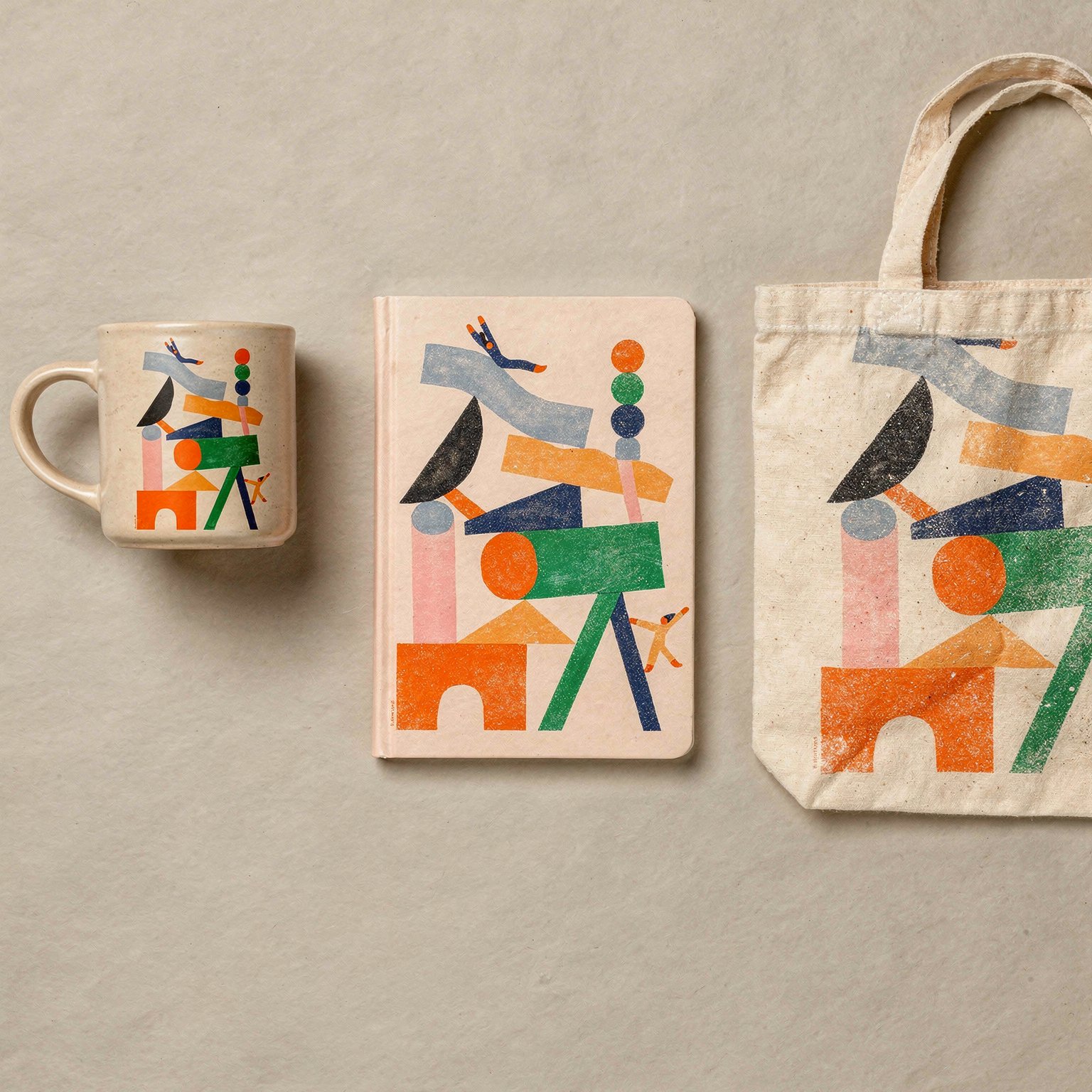
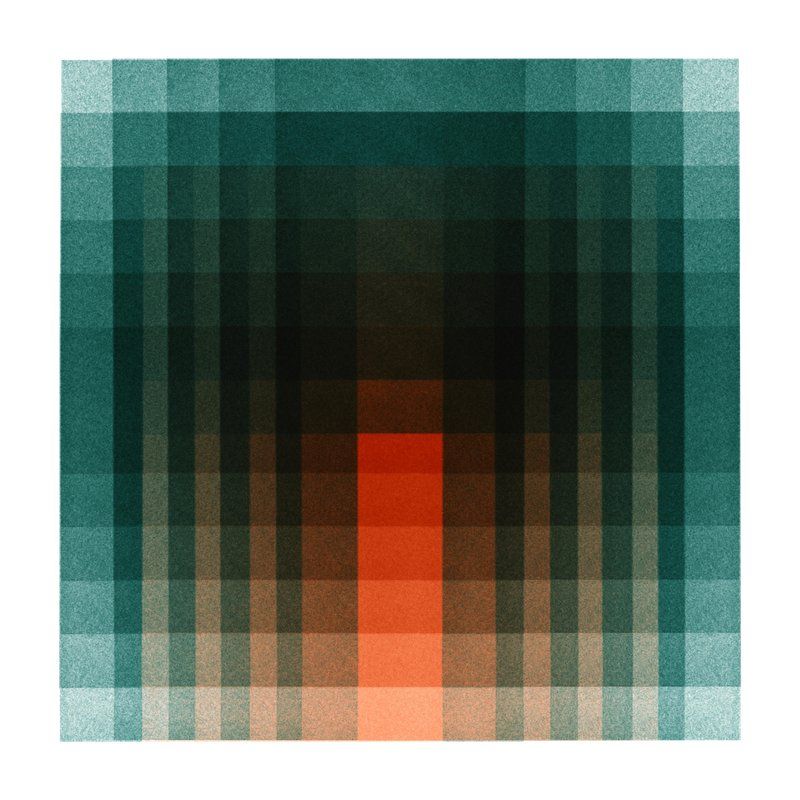
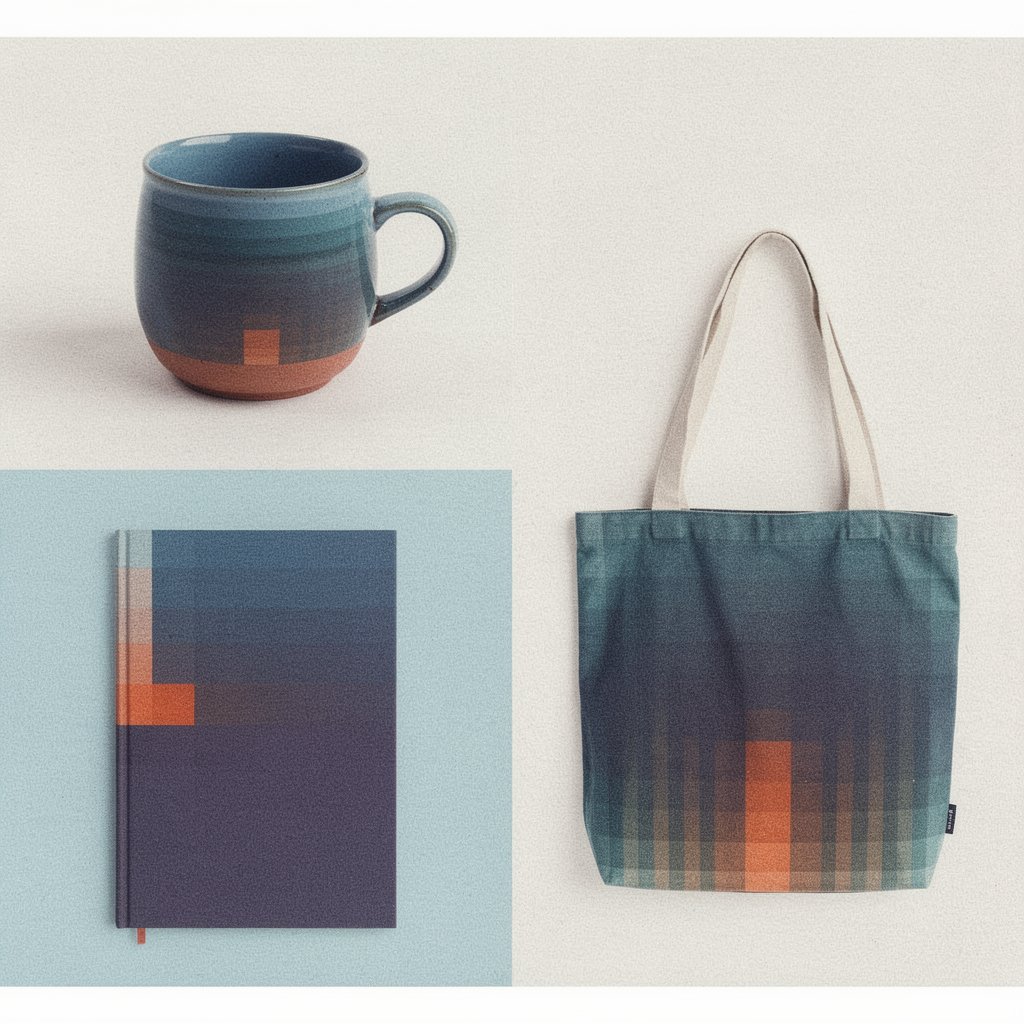
When used with style references, Flux is effective at applying a consistent visual treatment across different subjects, making it useful for creating cohesive sets of images within a defined aesthetic.
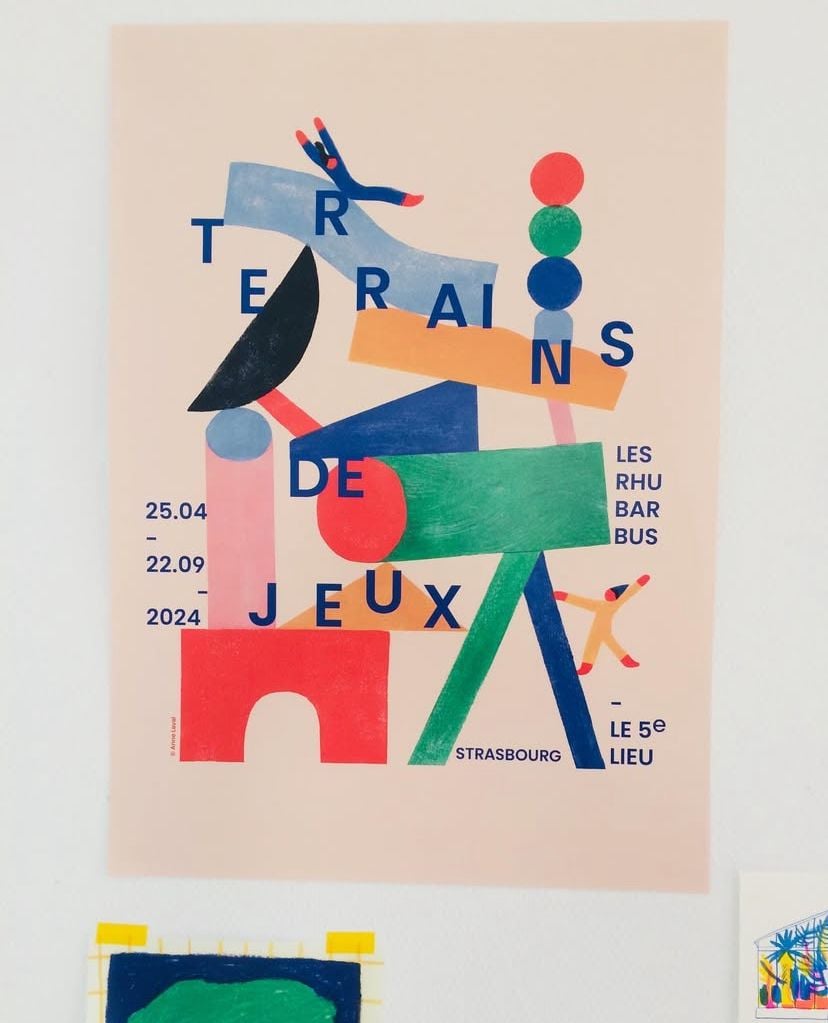
Three product shots of a ceramic mug, a hardcover notebook, and a canvas tote bag, all rendered in the same risograph print style, limited four-color palette of bright orange, green, dark blue, and pale pink with slight mis-registration effect, grain texture throughout, flat lay composition, cohesive editorial feel.
Reference image:
Reference image: