

Domain verification proves that your organization owns the email domain used by your team members. This is a prerequisite for enabling SAML Single Sign-On (SSO) and other enterprise security features.Documentation Index
Fetch the complete documentation index at: https://docs.krea.ai/llms.txt
Use this file to discover all available pages before exploring further.
Domain verification is required before you can configure SAML SSO. Complete these steps first, then proceed to SAML SSO Setup.
Prerequisites
Workspace Role
You must be a workspace owner or admin
DNS Access
Access to your organization’s DNS settings (Cloudflare, Route 53, GoDaddy, etc.)
Why Verify Your Domain?
Domain verification ensures that only authorized administrators can:- Configure Domain Capture to automatically invite or enroll users with your domain
- Enable SAML SSO for users with your company email domain
- Manage authentication settings for your organization
- Control how team members access your Krea workspace
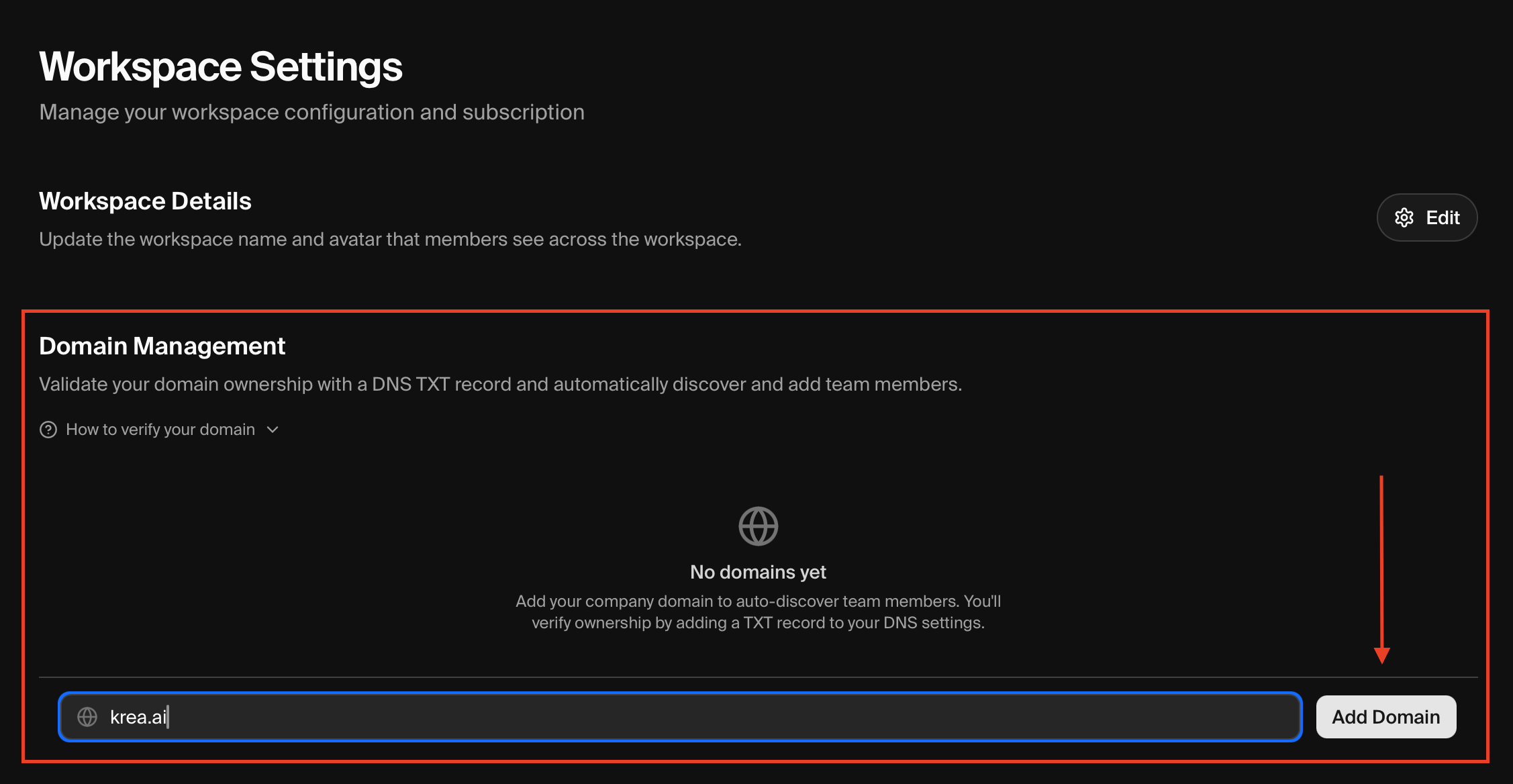
Step 1: Add Your Domain
Open Workspace Settings
Navigate to Workspace Settings ↗.You can also click your workspace avatar in the bottom-left corner of the sidebar, then select Settings.
Step 2: Add DNS TXT Record
After adding your domain, Krea displays a verification token. Your domain will show as Pending until verified.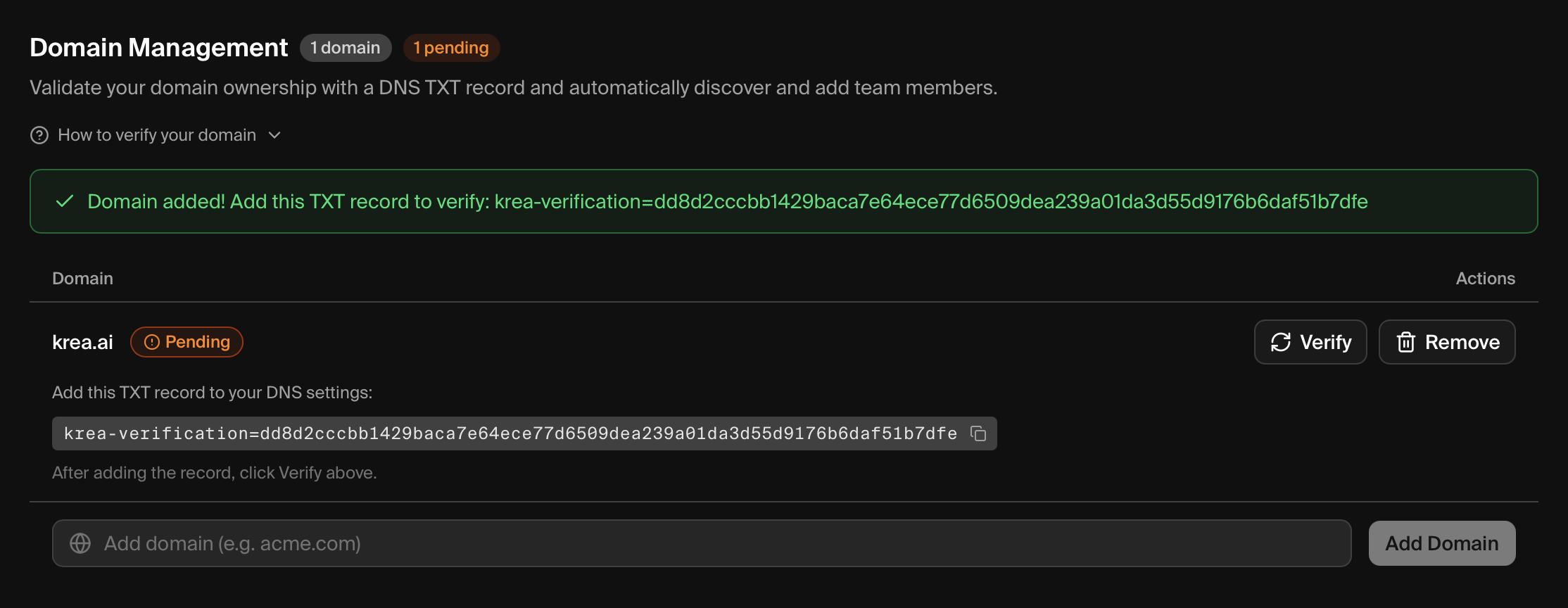 You’ll see:
- A success alert with the verification token (starting with
krea-verification=) - Your domain listed with a Pending status
- A copyable TXT record value
DNS Record Details
| Field | Value |
|---|---|
| Type | TXT |
| Host/Name | @ (or leave blank, depending on your DNS provider) |
| Content/Value | The verification token shown in the modal |
| TTL | 3600 (1 hour) or your provider’s default |
Adding the Record by Provider
- Cloudflare
- AWS Route 53
- GoDaddy
- Namecheap
- Google Domains
- Other Providers
- Log in to Cloudflare Dashboard
- Select your domain
- Click DNS in the left sidebar
- Click Add record
- Set Type to
TXT, Name to@, and paste the token in Content - Click Save
Reference: Cloudflare DNS Documentation ↗
Step 3: Verify Your Domain
DNS propagation can take anywhere from a few minutes to 72 hours. If verification fails, wait 5-10 minutes and try again.
Configure Domain Capture
Domain Capture controls what happens when a user with a matching verified email domain signs in to Krea. You can automatically add them to your workspace, prompt them to join, or take no action.Capture Modes
| Mode | Label in Settings | Behavior |
|---|---|---|
| Off | Disabled | Users join only via direct admin invitation. |
| Optional | Auto-Invite Enabled | Users see a “Join Your Verified Workspace” modal. They can accept or dismiss it (re-prompted after 1 week). |
| Enforced | Auto-Enroll Enabled | Users are automatically added to your workspace on next login. Their active workspace switches automatically and they see a confirmation modal. No opt-out. |
Setting the Capture Mode
Open Domain Management
Navigate to Workspace Settings ↗ and scroll to the Domain Management section.
Locate your verified domain
Find the domain you verified. Note that it defaults to Enforced (Auto-Enroll) immediately after verification.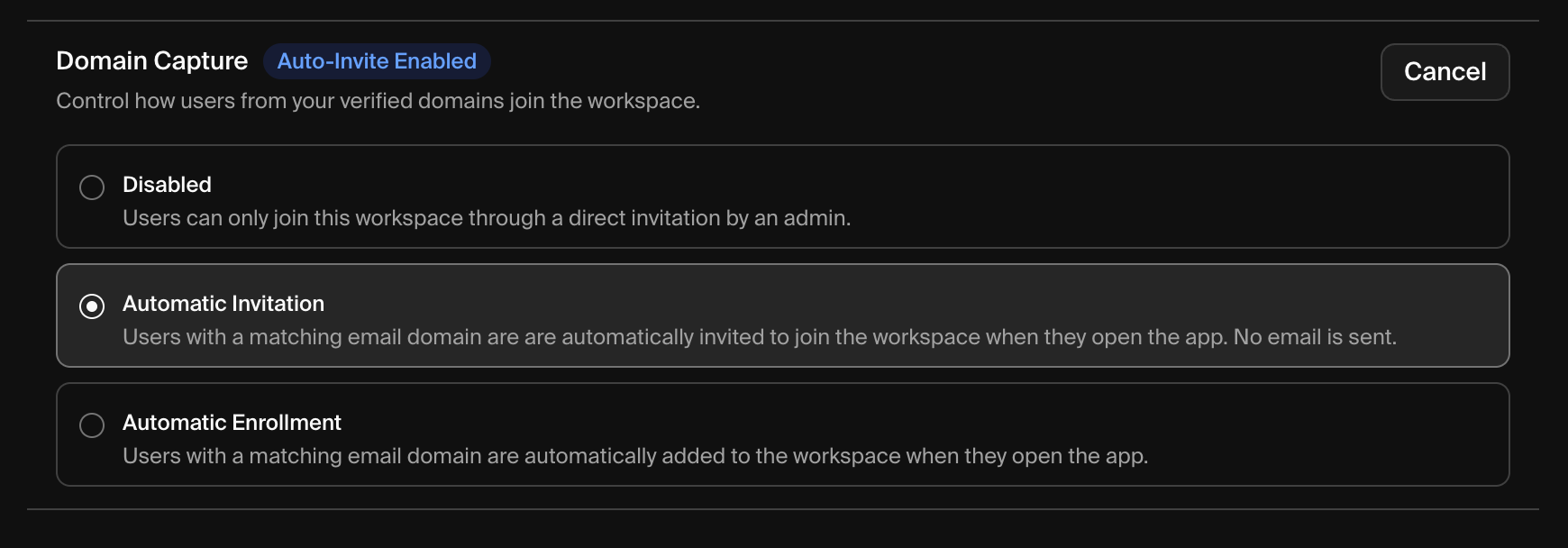
Key Details
Multiple workspaces with the same domain
Multiple workspaces with the same domain
Multiple workspaces can verify the same email domain. Each workspace manages its own capture mode independently. A user matching multiple workspaces may be enrolled or prompted for each one.
Existing workspace members
Existing workspace members
Users who are already members of your workspace are not affected by Domain Capture. No duplicate invitations or enrollment actions occur.
Troubleshooting
DNS record not found
DNS record not found
- Wait for propagation — DNS changes can take up to 72 hours (usually under 1 hour)
- Verify your record — Use MXToolbox TXT Lookup to check if the record is visible
- Check for typos — Ensure the verification token is copied exactly
- Check the host field — Some providers want
@, others want it blank, and some want your domain name
Record exists but verification still fails
Record exists but verification still fails
- Check for duplicate records — Remove any old or duplicate TXT records
- Verify the exact value — Some providers add quotes automatically; don’t add extra quotes
- Try a different TTL — Lower TTL values (300 seconds) propagate faster
I don't have access to DNS settings
I don't have access to DNS settings
Contact your IT administrator or the person who manages your organization’s domain. They’ll need to add the TXT record for you.
Next Steps
Once your domain is verified and Domain Capture is configured, you can proceed to set up SAML SSO for centralized authentication:SAML SSO Setup
Configure Single Sign-On for your Krea Enterprise workspace