Overview
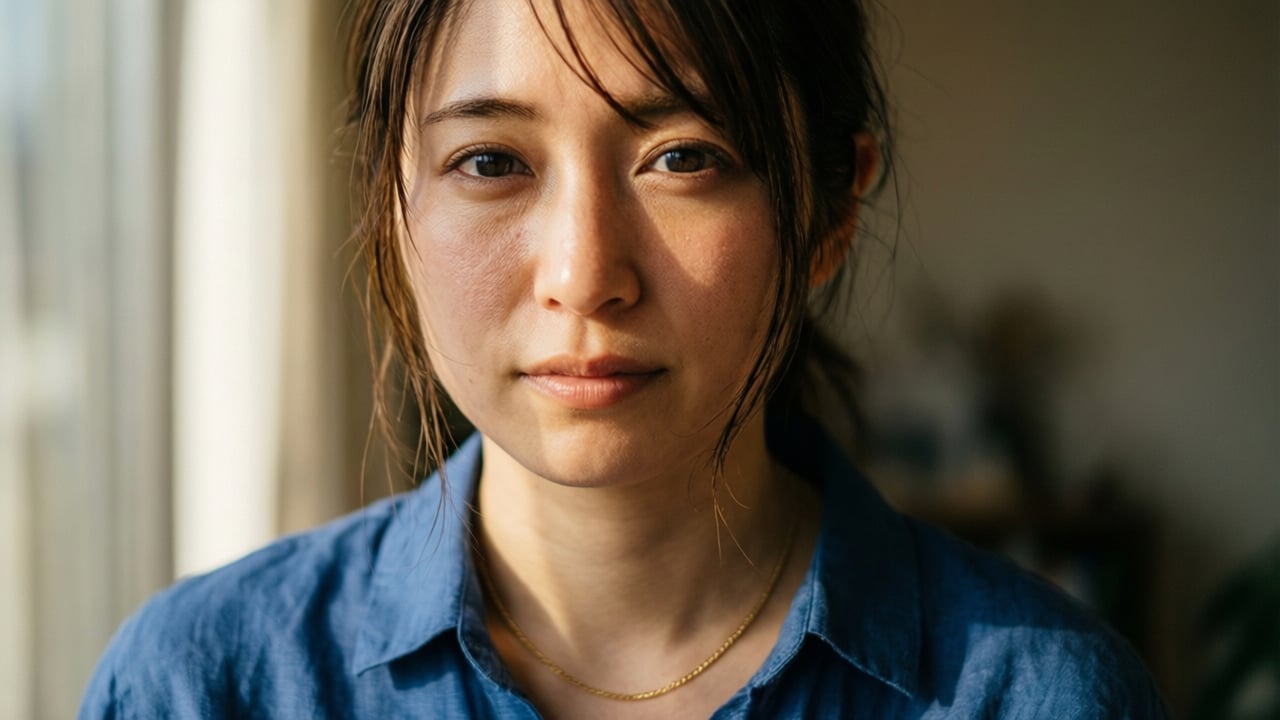
Qwen 2512 is a fast model with a clear specialty: making images that feature people, places, and words look genuinely convincing. Where many models struggle with the subtleties of human faces, Qwen 2512 handles skin texture, facial structure, and natural lighting with noticeably more care. That same attention to detail carries over into landscapes, where it renders fine environmental textures rather than smoothing them into something generic.
Its most distinctive capability, though, is text rendering. If your image needs to include legible words (a storefront sign, a label, a poste) Qwen 2512 is one of the more reliable fast models for getting that right.
At 9 credits per image, it sits just above Krea 1 in cost, but for the right kind of prompt, the added detail is worth it.
At a Glance
| Feature | Detail |
|---|
| Speed | Medium (2/3) |
| Quality | Selective (1/3) |
| Credits | 9 per image |
| LoRA support | No |
| Best at | Human portraits, landscapes, text in images |
Getting Started
- Go to Image Generation — Navigate to krea.ai/image and select this model from the dropdown.
- Select Qwen 2512 — Open the model picker and choose Qwen 2512 from the Fast Models section.
- Write your prompt — Describe your subject in natural language. Be specific about the person, setting, and lighting.
- Add an image reference (optional) — Upload a reference photo to guide the style or composition.
- Generate and review — Check your images for facial accuracy, landscape detail, and text legibility.
- Refine if needed — Use the Edit tool to fix small details, or adjust your prompt and regenerate.
When to Use Qwen 2512
| Use When | Avoid When |
|---|
| Your image features people and you need realistic skin and faces | You need to apply a custom LoRA style |
| You are generating landscapes with fine natural detail | You want a heavily artistic or editorial look |
| Your prompt includes visible text such as signs or labels | Speed is the top priority |
| You want a natural, grounded output with no artistic spin | |
Prompting Tips
| Tip | Example |
|---|
| Describe lighting specifically for portraits | ”Soft window light from the left” rather than “good lighting” |
| Include skin tone, age, and expression for controlled portrait outputs | ”Woman in her 40s, warm olive skin, relaxed expression” |
| Put any text you need in the image inside quotes | A sign reading “Fresh Coffee” |
| Add time of day and weather to landscape prompts | ”Misty mountain valley at dawn” rather than “mountain” |
| Use Qwen’s reasoning ability for complex scene relationships | Describe spatial arrangements, interactions, or layered details directly in the prompt |
Examples
Realism in Facial Features / Portraits
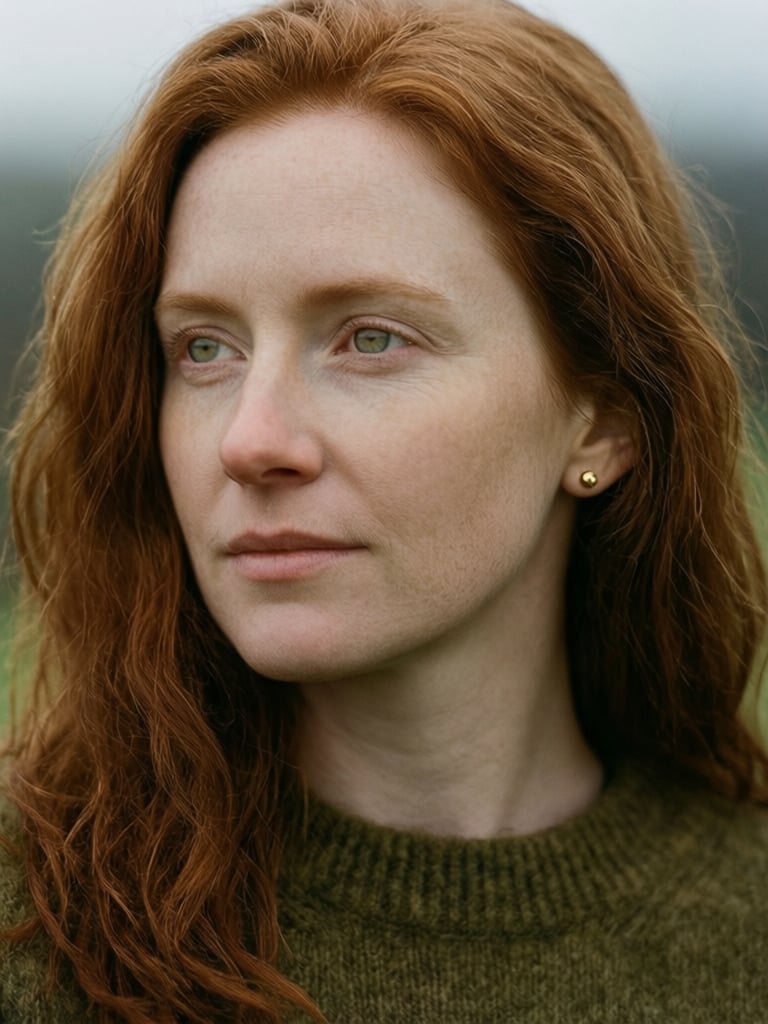
Qwen 2512 significantly reduces the AI-generated look, producing images that feel more naturally photographed than most fast models. It delivers noticeably finer detail across human subjects, with accurate skin texture, realistic facial features, and natural lighting. This detail carries over into landscapes and natural elements, where it renders fur, foliage, and environmental textures with more precision than you would typically expect at credit price point.
A close-up portrait of an Irish woman in her early thirties, natural copper-red hair falling in loose waves around her face, pale freckled skin, light green eyes with a quiet, thoughtful expression. Wearing a soft olive wool sweater, a small gold stud earring visible. Overcast natural light typical of a grey Irish morning, even and diffuse, no harsh shadows, subtle cool undertones in the skin. Shot on 85mm, shallow depth of field, photorealistic, film photography aesthetic, intimate and natural.
Text Rendering
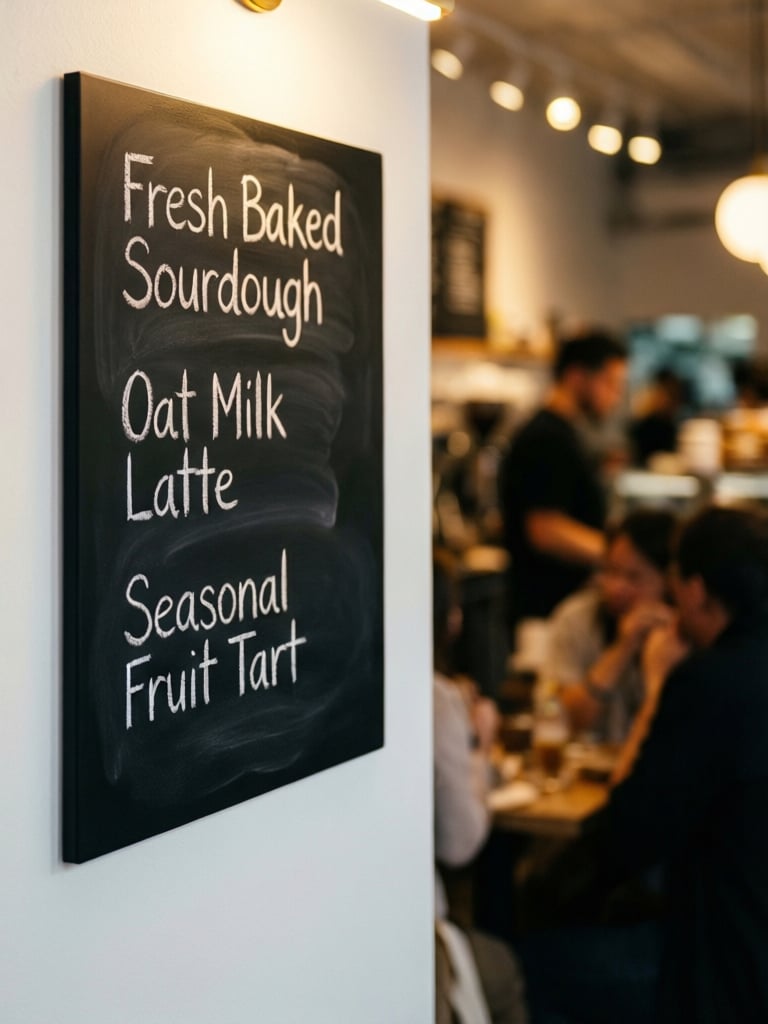
Qwen 2512 handles text rendering with noticeably more accuracy than most fast models. When your prompt includes legible words, whether on a sign, a label, a menu, or any other surface, Qwen 2512 reproduces them cleanly and in context, with better letter formation, correct spacing, and layout that integrates naturally into the overall composition. This makes it a reliable choice for any image where readable text is part of the visual.
A close-up photograph of a contemporary coffee cafe menu board mounted on a white wall, handwritten chalk lettering reading "Fresh Baked Sourdough," "Oat Milk Latte," and "Seasonal Fruit Tart," written in all caps in a sans serif font warm interior light catching the texture of the chalk strokes, soft bokeh background showing a busy cafe interior, photorealistic, shallow depth of field, shot on 35mm.