Documentation Index
Fetch the complete documentation index at: https://docs.krea.ai/llms.txt
Use this file to discover all available pages before exploring further.
What Is Realtime?
Krea Realtime is a live generation tool that turns your canvas into an active creative surface. As you draw, type, or adjust elements, the output updates immediately: there is no queue, no waiting, and no render button to press. The result you see on the right side of the screen reflects your canvas at every moment.
Think of it as a sketchpad wired directly to an AI model. Rough strokes, simple shapes, and loose color blocks are enough to guide the generation. The more you refine the canvas, the more precise the output becomes.
At a Glance
| Feature | Details |
|---|
| Output types | Image, Video |
| Draw modes | Draw, Web Camera, Screen Record, Text Only |
| Aspect ratios | 1:1, 3:2, 2:3 |
| Resolution | 512px (fast models), 1024px (quality models) |
| Shortcut keys | Yes — see Keyboard Shortcuts below |
Overview
The Realtime interface is split into two panels. On the left is the canvas, where all of your input happens. On the right is the live output, which reflects the current state of the canvas and prompt in real time. Every change you make – a new brushstroke, a color adjustment, an updated prompt – is picked up immediately and reflected in the output.
Below the prompt box, you can switch between generating an image or a video, choose a draw mode, and set your aspect ratio. At the bottom left of the interface, you have access to model selection and a preview toggle that hides the canvas entirely so you can focus on the result.
When to Use Realtime
Realtime is well suited for fast ideation, visual exploration, and any situation where you want to feel your way toward a result rather than specify it precisely up front. It works particularly well when you want to experiment with composition, test how a model interprets shapes and color, or use a live camera feed or screen share as a creative input. For more deliberate, prompt-driven generation without a drawing component, Krea Image is the better starting point.
Getting Started
To begin, open a Realtime session from the Krea dashboard. You will see the split-panel interface with the canvas on the left and the live output on the right. Enter a prompt in the prompt box, then start drawing or making adjustments on the canvas. The output will update as you work.
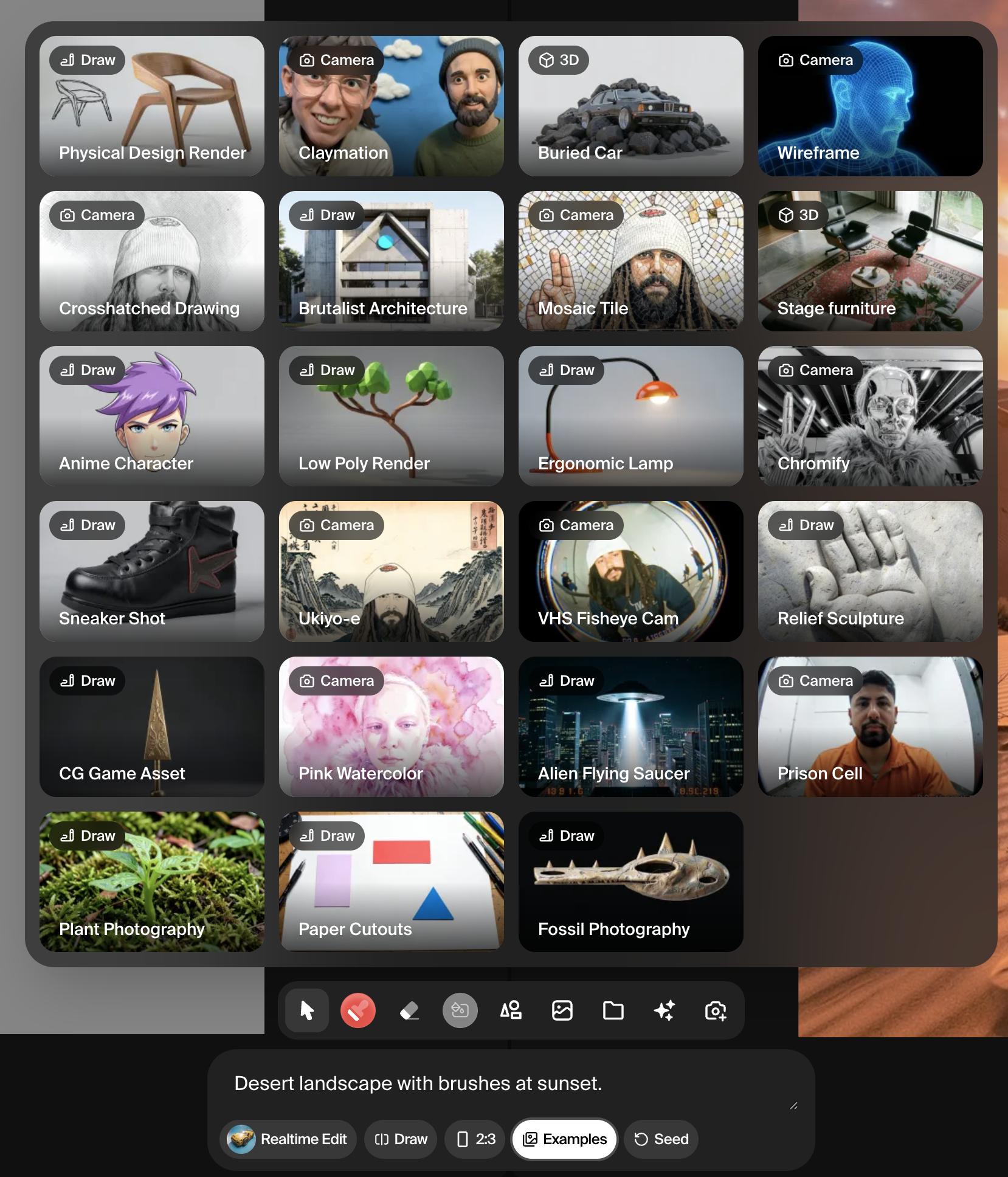
If you are not sure where to start, select one of the built-in Examples to load a preset canvas and prompt. These are designed to demonstrate what Realtime can do and give you a starting point you can modify.
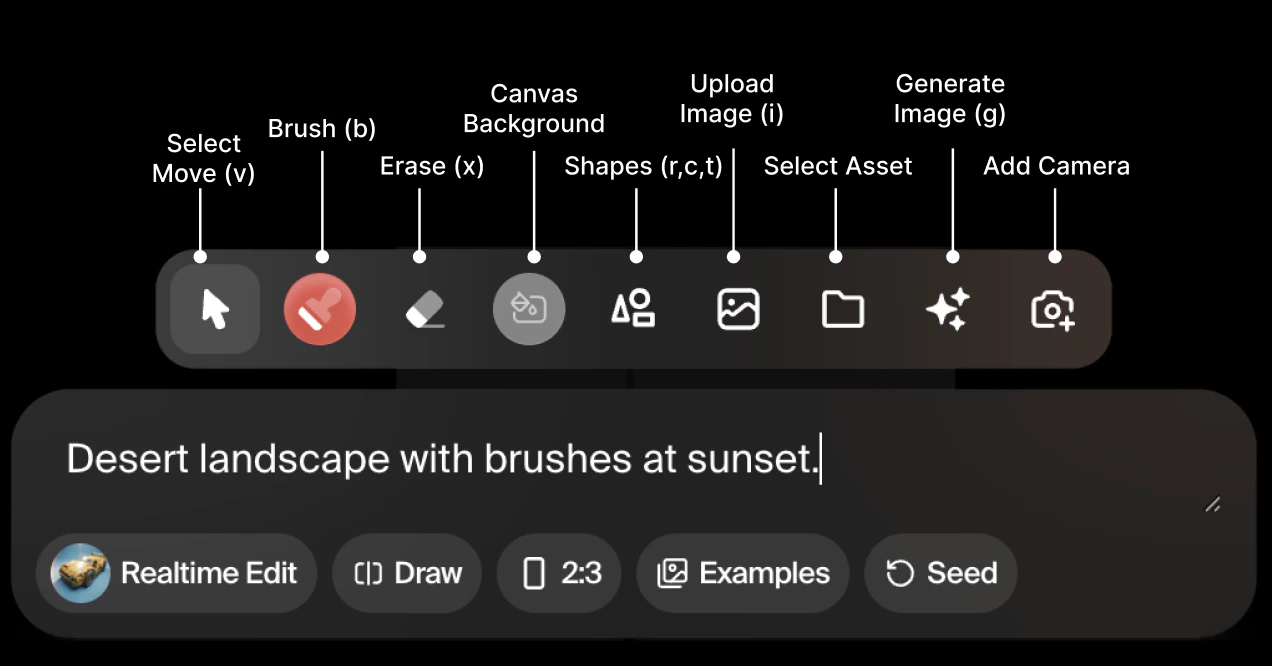
The left-hand canvas is your input surface. Everything you place or draw there is interpreted by the AI model and reflected in the output. The following tools are available:
- The Select tool (shortcut: V) lets you click and reposition elements already on the canvas. Use it to move shapes, images, or generated elements around without affecting other content.
- The Brush tool (shortcut: B) works like a standard paintbrush. You can set the color, size, and opacity to paint directly onto the canvas. Rough strokes are fine — the AI will interpret the marks and incorporate them into the generation.
- The Eraser tool (shortcut: X) removes content from the canvas. Like the brush, it behaves similarly to what you would find in standard image editing tools.
- The Background color tool changes the solid color fill of the canvas background. This is useful for establishing a base tone before adding other elements.
- The Shape tools let you place a circle (shortcut: C), rectangle (shortcut: R), or triangle (shortcut: T) on the canvas. Shapes are a fast way to define composition and spatial layout without freehand drawing.
- The Upload image tool (shortcut: I) lets you place an image file directly onto the canvas. You can also pull in images from your Krea asset library if you have previously uploaded assets. Uploaded images act as visual references that the model will incorporate into the generation.
- The Live capture tool connects your webcam as a live input stream. The model will continuously interpret the camera feed and update the output accordingly. This is useful for motion-driven or performance-based creative work.
- The Generate image tool (shortcut: G) lets you place an AI-generated image directly onto the canvas, which can then be used as a reference layer for further generation.
Draw Modes
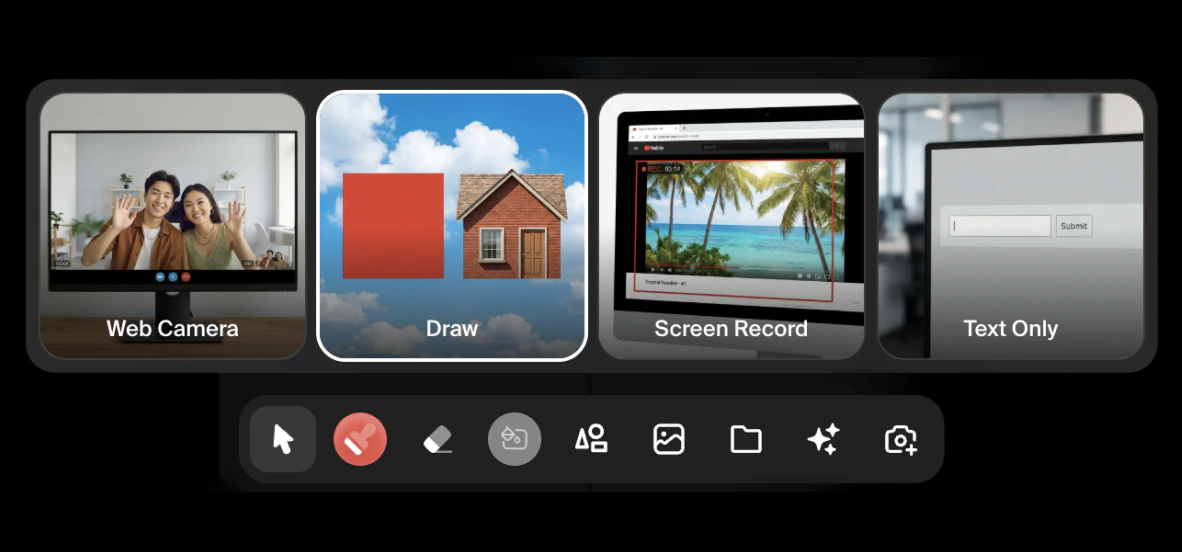
Draw mode determines what the model uses as its primary visual input. You can switch between modes using the selector below the prompt box.
- Draw is the default mode. The canvas itself your brushstrokes, shapes, and uploaded images serves as the input.
- Web Camera replaces the canvas with a live feed from your webcam. The model interprets the camera stream in real time, reading shapes, colors, and movement. Lowering the AI strength in this mode keeps the output closer to the actual camera feed; raising it pushes the result toward a more abstracted, style-driven interpretation.
- Screen Record lets you share a browser tab as your visual input. Any content visible on that tab, a reference board, a website, a design file, is read continuously by the model. This is a useful way to use external visual references without uploading them directly.
- Text Only disables visual input entirely. The model generates based on the prompt alone, without any canvas reference.
Output Type, Aspect Ratio, and Seed
Below the prompt box, you can toggle between Image and Video output. Video generation in Realtime produces short clips that are driven by the same canvas and prompt inputs as image mode.
Aspect ratio can be set to 1:1, 3:2, or 2:3, depending on whether you need a square, landscape, or portrait output.
The Seed button generates a new variation of the current output. When you are happy with the general direction but want to explore alternatives, click Seed to produce a fresh result based on the same inputs.
Model Selection
The Model button at the bottom left of the interface lets you choose which model drives the generation. The following models are currently available in Realtime:
| Model | Resolution | Notes |
|---|
| Cartoon Fast | 512px | Stylized cartoon aesthetic, fast generation |
| CGI Fast | 512px | Computer-generated imagery look, fast generation |
| Concept Fast | 512px | Concept art style, fast generation |
| Photo Fast | 512px | Photorealistic output, fast generation |
| HD Quality | 1024px | Higher resolution output with style options |
| Flux Realtime Quality | 1024px | Quality output with support for trained styles |
| Realtime Video Frame Consistency | — | Optimized for coherent video generation |
| Realtime Edit Fast | 512px | Optimized for canvas-based editing workflows |
Saving Your Work
When you are satisfied with the output, two options are available at the bottom of the output panel. Upscale sends the current result through Krea’s upscaling pipeline to increase its resolution and detail. Download saves the image directly to your device.
Keyboard Shortcuts
| Action | Shortcut |
|---|
| Select tool | V |
| Brush | B |
| Eraser | X |
| Circle shape | C |
| Rectangle shape | R |
| Triangle shape | T |
| Upload image | I |
| Generate image | G |