

Documentation Index
Fetch the complete documentation index at: https://docs.krea.ai/llms.txt
Use this file to discover all available pages before exploring further.
Business and Enterprise Only — Model Access Controls are available on Business and Enterprise plans. Contact our sales team to learn more.
Key Concepts
Two Modes
Krea offers two access control modes that determine how models are treated by default:Allow All (Blocklist)
Every model is available by default. You explicitly block the ones you don’t want.New models added to Krea are automatically available.
Block All (Allowlist)
Every model is blocked by default. You explicitly allow the ones you approve.New models added to Krea are automatically blocked until you allow them.
Hierarchical Policies
Model access is enforced at multiple levels. Each level can further restrict — but never expand — access granted by the level above.| Level | Scope | Availability |
|---|---|---|
| Workspace | Applies to everyone in the workspace | Available now |
| Member | Narrows access for an individual member | Available now |
| Project | Narrows access for a specific project | Coming soon |
A member policy can only restrict models that are already allowed at the workspace level. It cannot grant access to a model the workspace has blocked.
Prerequisites
Workspace Role
You must be a workspace owner or admin
Business or Enterprise Plan
Model Access Controls require a Business or Enterprise subscription
Choose an Access Control Mode
By default, new workspaces start in Allow All (Blocklist) mode. To switch:
Open Workspace Settings
Navigate to Workspace Settings ↗ and find the Model Access section.
Confirm the Switch
A confirmation dialog will explain the impact:
- Switching to Block All (Allowlist): All models will be blocked by default. All currently available models will be added to the allowed list as a starting point, so nothing changes immediately — but any new model added to Krea in the future will be blocked until you allow it.
- Switching to Allow All (Blocklist): All models will be allowed by default. Your current allowed list will be cleared.
Manage Workspace-Level Access
After choosing a mode, you can configure which models to block or allow at the workspace level.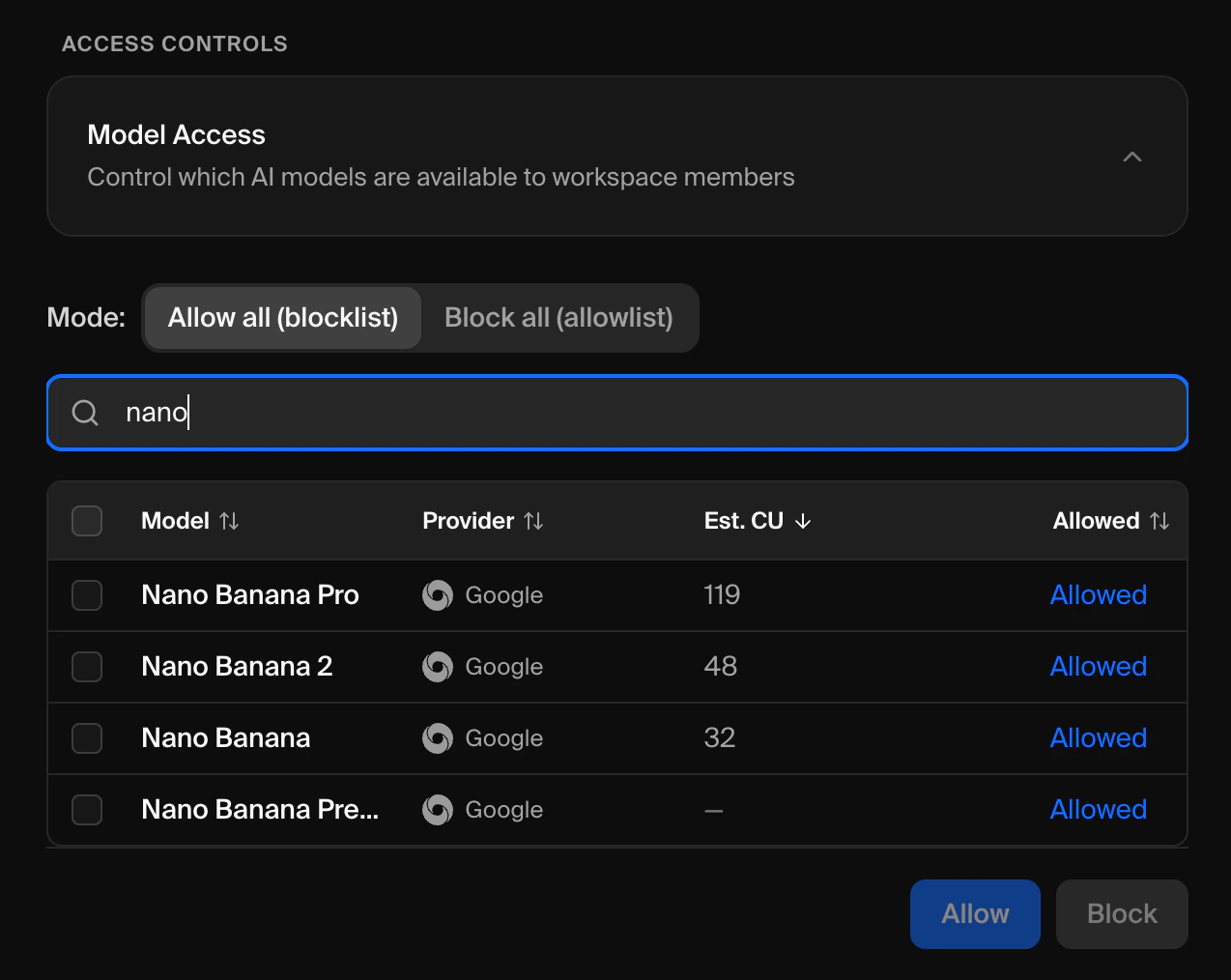
Open Model Access Settings
In Workspace Settings ↗, expand the Model Access card.
Find Models
Use the search bar to filter models by name or provider. The table shows each model’s name, provider, estimated compute cost, and current access status.
Manage Member-Level Access
You can customize model access for individual workspace members.Go to Members
Navigate to Members ↗.
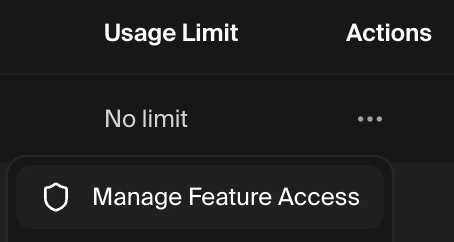
Select Manage Model Access
Click Manage Model Access. The model table will automatically expand inline below the member’s row.
How New Models Are Handled
This is the most important difference between the two modes:| Scenario | Allow All (Blocklist) | Block All (Allowlist) |
|---|---|---|
| New model added to Krea | Automatically available to all members | Automatically blocked for all members |
| Admin action required? | Only if you want to block it | Yes — must allow it before anyone can use it |
Downgrading Your Plan
If your workspace downgrades to a plan that does not include Model Access Controls, all access policies are automatically removed and your workspace reverts to the default behavior where all models are available.Upgrading again will not restore your previous policies. You will need to reconfigure them.
Troubleshooting
I don't see the Model Access section in Workspace Settings
I don't see the Model Access section in Workspace Settings
Model Access Controls are only available on Business and Enterprise plans. If you’re on a different plan, you’ll see an upgrade prompt instead. Manage your subscription ↗ or contact sales to upgrade.
New models keep appearing as available
New models keep appearing as available
Your workspace is in Allow All (Blocklist) mode. In this mode, new models are available by default. Switch to Block All (Allowlist) mode to ensure new models are blocked until you explicitly allow them. See Choose an Access Control Mode.
A member can still use a model I blocked
A member can still use a model I blocked
- Verify the block is applied at the correct level (workspace or member).
- Check that the workspace mode is correct — in Allowlist mode, the model must be absent from the allowed list to be blocked.
I can't allow a model that's grayed out
I can't allow a model that's grayed out
The model is blocked at the workspace level. A member-level policy cannot override restrictions from above. Ask a workspace admin to allow the model at the workspace level first.
I switched modes and lost my member policies
I switched modes and lost my member policies
Switching between Blocklist and Allowlist modes clears all member-level policies. This is expected because the semantics of the rules change between modes. You’ll need to reconfigure member policies after switching.
Need Help?
Enterprise Support
Contact our enterprise support team at support@krea.ai
Sales Team
Questions about Business or Enterprise plans? Email sales@krea.ai