Overview
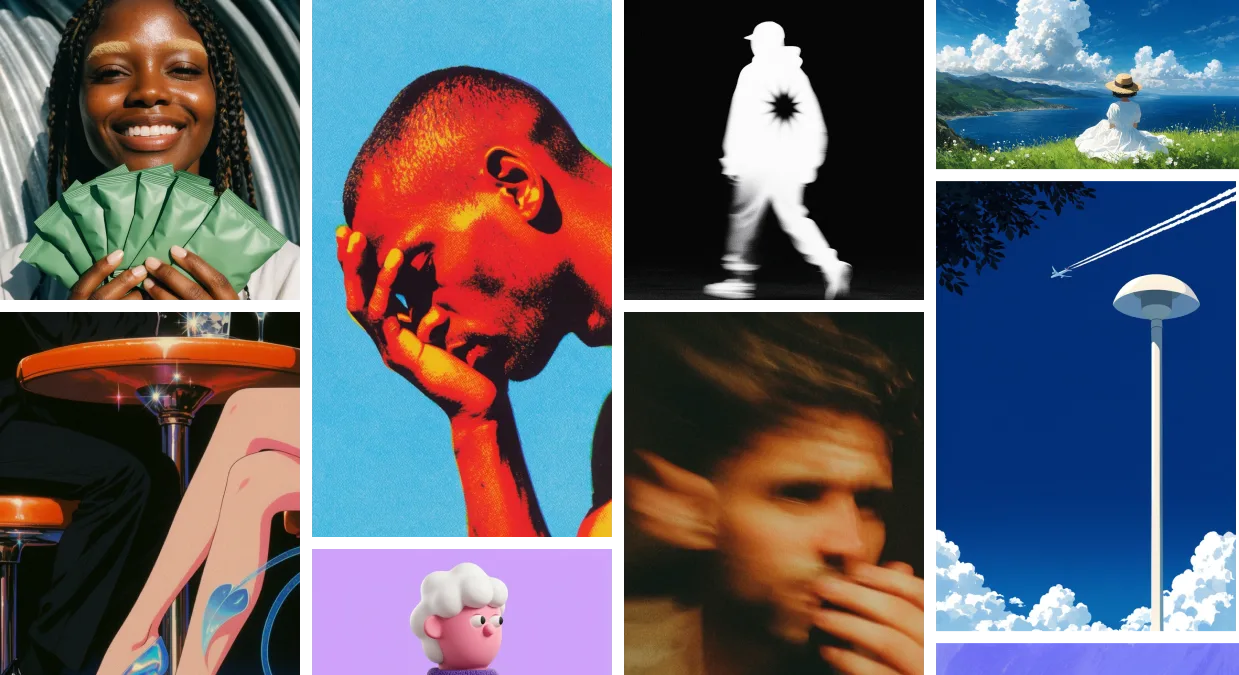
Krea 2 is Krea’s first foundation image model, trained from scratch to give you full control over the look, feel, and creative direction of every image you generate. It ships in three variants — Medium, Large, and Medium Turbo — and supports the most advanced style-transfer system on the market, moodboards, and Generative Sliders.
Use Krea 2 when you want expressive, aesthetic results that don’t look like generic AI output: editorial illustration, photorealism with real texture, character work, fashion, worlds, posters, and any project where style and creative direction matter.
Variants
| Variant | Best for | Speed | Where to use |
|---|
| Krea 2 Medium | Stable, general-purpose output. Illustration, anime, painting, expressive styles. | Standard | krea.ai/image |
| Krea 2 Large | Photorealism, raw textures, motion blur, the richest output. | Slower | krea.ai/image |
| Krea 2 Turbo | Fast, low-cost iteration on expressive illustration and concepts. | Fastest | See the Krea 2 Turbo page |
Start with Krea 2 Medium for everyday work. Move up to Krea 2 Large when you want the richest texture or full photorealism. Use Krea 2 Turbo to explore prompts and visual directions quickly before committing to a polished pass.
At a Glance
| Feature | Detail |
|---|
| Models | Krea 2 Medium, Krea 2 Large, Krea 2 Turbo |
| Resolution | 1K |
| Batch size | Up to 4 images |
| Style references (Srefs) | Yes — up to 4 image style references |
| Moodboards | Yes |
| Generative Sliders | Yes — Intensity, Complexity, Movement |
| Creativity modes | Raw, Low, Medium, High |
| Krea styles (LoRAs) | Yes |
| Seed support | Yes |
Getting Started
- Go to Image Generation — Navigate to krea.ai/image.
- Select a Krea 2 variant — Open the model picker and choose Krea 2 Medium, Krea 2 Large, or Krea 2 Turbo.
- Write your prompt — Describe the subject, setting, mood, and any specific style direction.
- Choose an aspect ratio — Pick from square, portrait, landscape, cinematic, or mobile formats.
- Add visual direction — Drop in style references, attach a moodboard, or apply a Krea style.
- Tune with Generative Sliders — Open the controls panel and adjust Intensity, Complexity, Movement, and Creativity to shape the result before generating.
- Generate — Compare outputs and re-roll with different slider values, references, or prompts.
Style controls
Krea 2 gives you four complementary ways to direct the visual outcome. All four work on every Krea 2 variant.
Style references (Srefs)
Upload up to 4 reference images to extract a style and apply it to your output. Each reference has a strength slider so you can dial in how strongly it shapes the result.
Krea 2 ships with the most powerful style-transfer system on the market — see the developer guide for examples and how to call it from the API.
Moodboards
A moodboard is a saved collection of images that share an overall creative direction — palette, texture, style, mood, or composition. Build a moodboard in the Krea webapp at krea.ai/moodboards, then reference it in Krea 2 to steer the entire generation toward that visual world.
Moodboards are the most precise way to set a visual direction in Krea 2.
Krea styles (LoRAs)
Apply compatible trained styles from your Krea style library to lock the output to a specific aesthetic or character.
Creativity
Pick how literally Krea 2 should follow your prompt:
- Raw — No expansion. Renders only what you’ve explicitly described.
- Low — Stays close to the literal prompt, fills only obvious gaps.
- Medium (default) — Balanced. Reasonable interpretation without straying.
- High — Strong expansion. Takes meaningful creative liberty with style, mood, and aesthetics.
Generative Sliders
Generative Sliders are three numeric controls — Intensity, Complexity, and Movement — that shape how Krea 2 interprets your prompt without rewriting it. They’re available in the controls panel for every Krea 2 variant (Medium, Large, and Turbo).
Each slider runs from −100 to 100, with 0 as neutral (no effect).
| Slider | Negative direction | Positive direction |
|---|
| Intensity | Bland, muted images | Intensely stylized images |
| Complexity | Minimal, clean compositions | Chaotic, dense compositions |
| Movement | Static images | Strong pose and camera movement |
How to use them
Keep your prompt steady and change one slider at a time so you can attribute each visual shift to a specific control.
| You want… | Try |
|---|
| Clean design, icons, editorial illustration | Lower Complexity (e.g. −60), keep Movement near 0. |
| Cinematic / fashion / character work | Raise Intensity (e.g. +60), add a touch of Movement (e.g. +30). |
| Expressive worlds and scenes | Push Intensity and Complexity positive; add Movement for kinetic energy. |
| Quick exploration | Turn on Random mode to vary all sliders each generation, then commit once you find a direction. |
Generative Sliders are independent of Creativity. Creativity changes how literally Krea 2 reads your prompt; the sliders shape the visual character of the output. They compose well — apply a moodboard for direction, then use the sliders to fine-tune how strongly that direction is expressed.
Supported Aspect Ratios
| Category | Aspect Ratio | Output Size |
|---|
| Square | 1:1 | 1024 x 1024 |
| Landscape | 4:3 | 1184 x 896 |
| Landscape | 3:2 | 1248 x 832 |
| Landscape | 16:9 | 1376 x 768 |
| Landscape | 2.35:1 | 1568 x 672 |
| Portrait | 4:5 | 928 x 1152 |
| Portrait | 2:3 | 832 x 1248 |
| Portrait | 9:16 | 768 x 1376 |
API
All three Krea 2 variants are available via the Krea API. See the Krea 2 developer guide for the full request shape, pricing, and per-variant endpoints, plus deep dives on style transfer, moodboards, and Generative Sliders.